What is it?
When you use a tracked camera, the tracking system keeps sending camera position data to Viz Engine. If that data arrives late, too early or not at all, virtual graphics can shake, jump or drift against the real camera image.
The Tracking Timing Monitor shows you whether tracking data is arriving smoothly. You can use it to answer questions like:
Is my tracking system sending data steadily?
When did a problem happen, and how long did it last?
Which camera is affected?
Opening the monitor
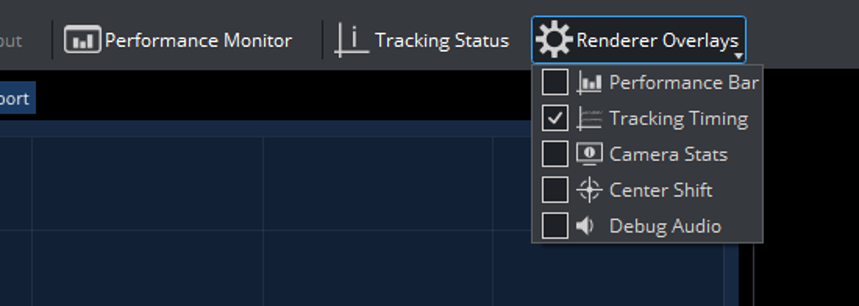
In Viz Artist, go to the On-Air toolbar:
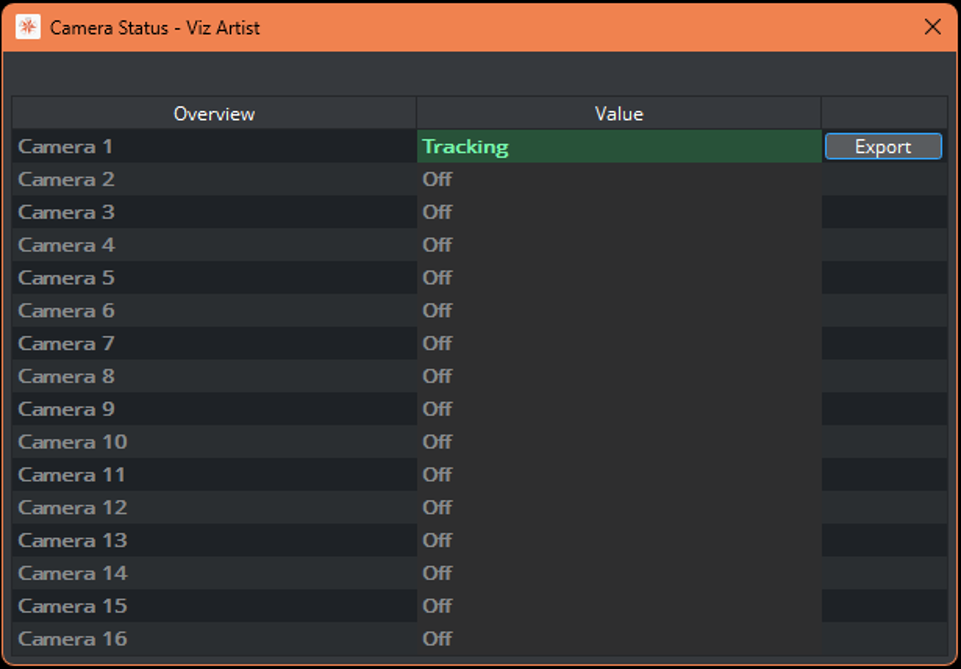
Tracking Status button: opens the Camera Status window, which shows all cameras at a glance.
Overlays > Tracking Timing: shows the timing graph on top of the render preview. This option is only available while the preview is enabled.
Camera Status window
The window has one row for each camera (up to 16). The color tells you the state of each camera:
Status | Color | Meaning |
|---|---|---|
Tracking | Green | Data is arriving normally. |
Underrun | Orange | Data was missing when the engine needed it. |
Overrun | Orange | Data is arriving faster than the engine can use it. |
No Data | Red | No tracking data is arriving at all. |
Off | Grey | Tracking isn't active for this camera. |
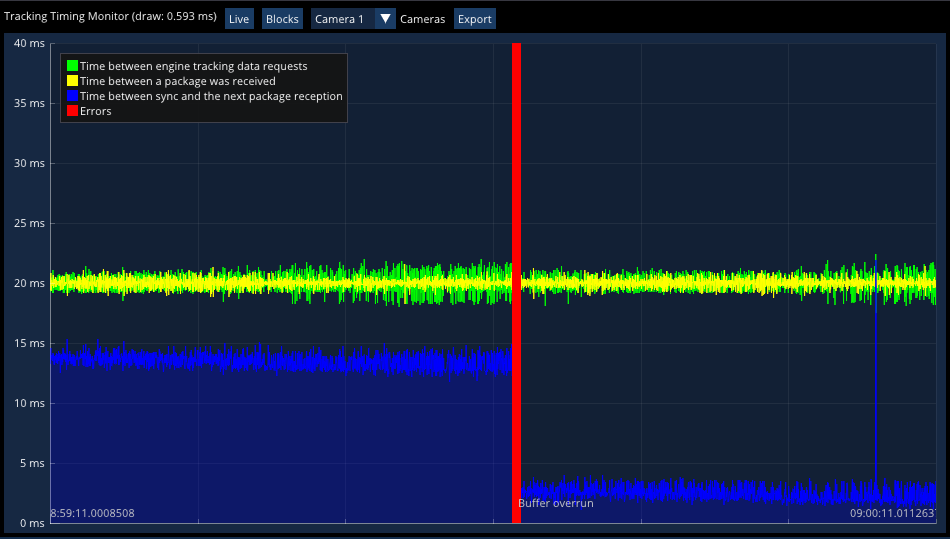
Reading the timing graph
The overlay has two views. You switch between them with the Live and Blocks buttons.
Live view: the last minute
The Live view shows three lines:
Green: how often the engine asks for tracking data.
Yellow: how often tracking data actually arrives.
Blue area: how long the engine waits for data after each frame starts.
What good looks like: flat, steady lines.
What a problem looks like: spikes, gaps, or a line that keeps slowly rising or falling.
Problems show up as red markers along the bottom of the graph. When a problem has just happened, a blinking warning appears at the top.
Blocks view: the last hour
The Blocks view shows one bar for each minute of the last hour. Tall or uneven bars mean timing was unstable during that minute. Click a bar to see that minute in detail in the Live view.
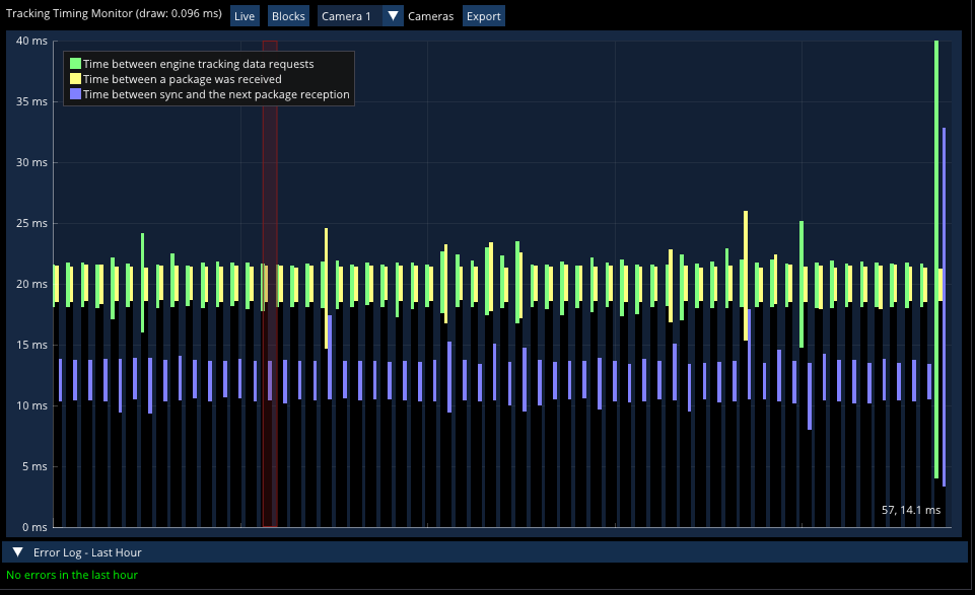
Error Log
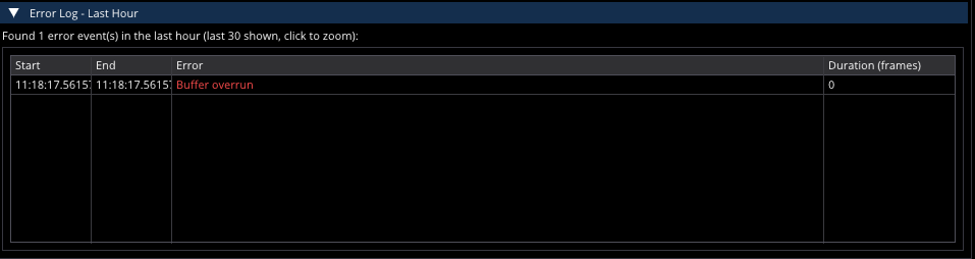
The Error Log lists the problems of the last hour: when each one started and ended, what kind of problem it was, and how long it lasted. Click an entry to jump to that moment in the Live view.
Saving the data for support
If you need to report a tracking problem, click Export next to the affected camera in the Camera Status window and choose where to save the file. This saves the camera's timing history as a CSV file, which you can open in Excel or send to your tracking vendor or to Vizrt Support.
You can also start the export from the overlay itself.
Tips
Red "No Data": check the cable or network connection and the tracking system's output settings.
Repeated orange warnings: the tracking system and Viz Engine may not be running in sync. Check the genlock and frame-rate settings on both sides.
Slowly rising or falling line: this often means a clock drift between the tracking system and the engine.