The Unreal plug-ins can be found in the program-data folder (typically in C:\ProgramData\Vizrt\VizArc) under Resources\Unreal. This machine-wide resources location is installed by the Viz Arc Engine Service installer and is independent of the per-user configuration folders described in Files and Folders.
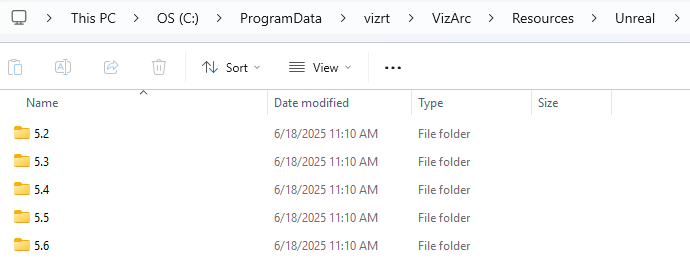
A subfolder is provided for each supported Unreal Engine version (in this release: 5.3, 5.5, 5.6, 5.7 and 5.8. Check the compatibility table in the Release Notes).
The plug-ins are usually installed automatically. For each Unreal installation detected on the machine, the installer places the plug-in directly into the matching Engine\Plugins folder. However, in case an Unreal Installation is not detected or not present during installation, the plug-ins can be copied manually from the above resource folder.
Unreal Engine 5.3: The 5.3 plug-in is only provided in the resources folder and is not installed into the Epic installation automatically. For version 5.3, always use the manual copy described below.
Navigate into the subfolder matching your Unreal version. From within the respective subfolder, copy the entire VizArc folder into the Unreal installation folder (for example, C:\Program Files\Epic Games\UE_5.3\) under Engine\Plugins or under Engine\Plugins\Runtime.
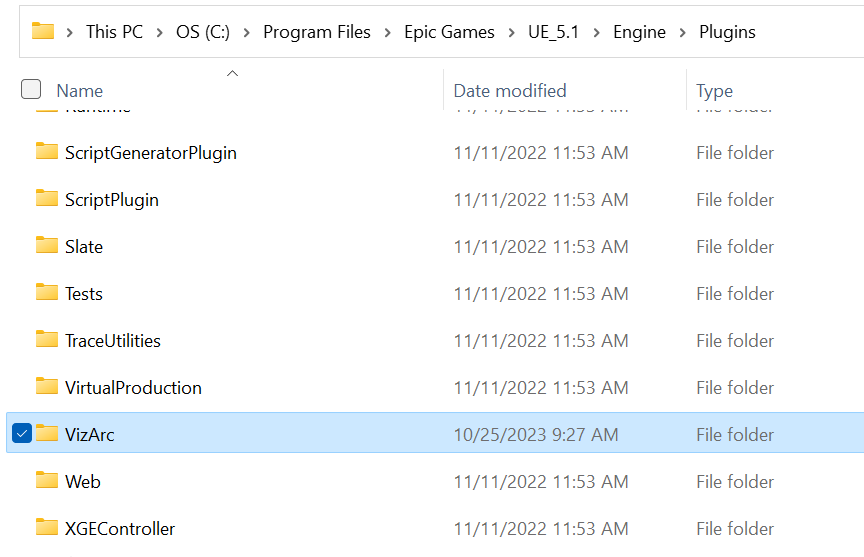
After copying the plug-in, restart Unreal Engine and ensure the plug-in is activated (it is active by default). To verify, open Unreal Engine and go to Edit > Plugins. You should find the Viz Arc plug-in by searching for VizArc.
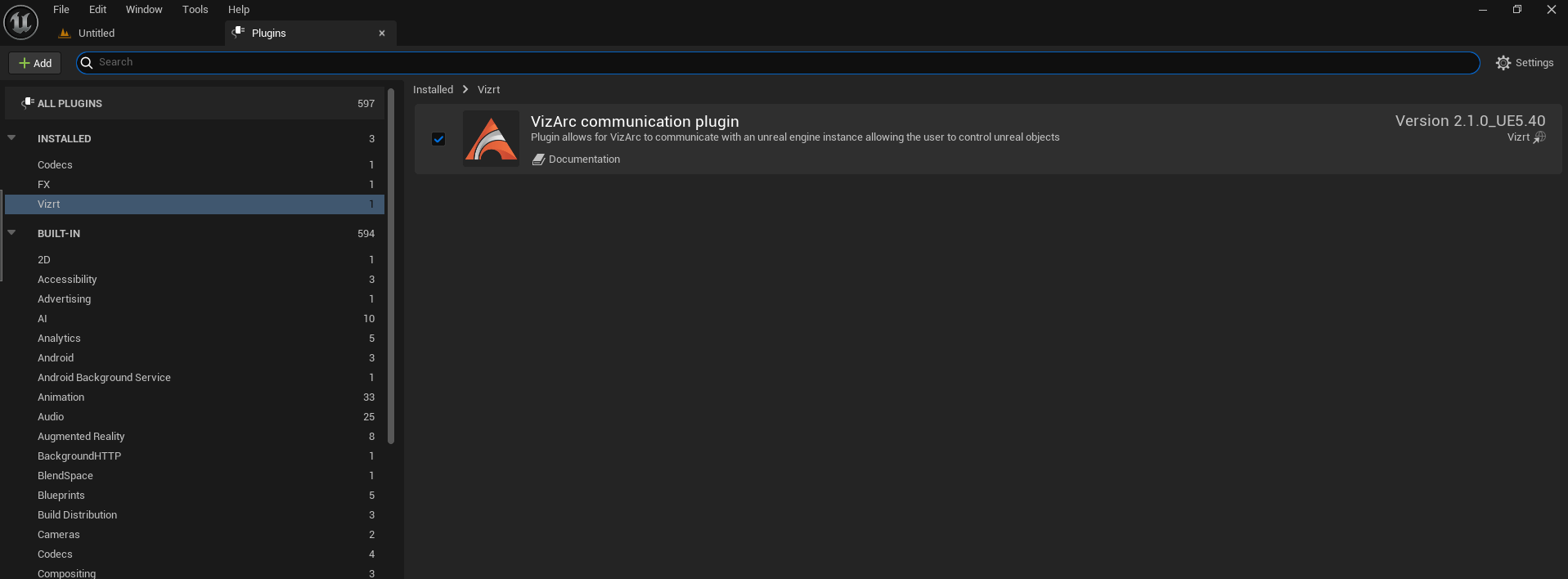
The communication port that is used by this plug-in in order to receive commands from Viz Arc is by default 5647. It can be changed by changing the registry value UEPluginPort in HKEY_LOCAL_MACHINE\SOFTWARE\vizrt\Viz Arc.
See Also