Once you've installed Viz Arc, you're ready to start using it! If you don’t have a license yet and the system cannot find any compatible license, the following (or similar) message appears:
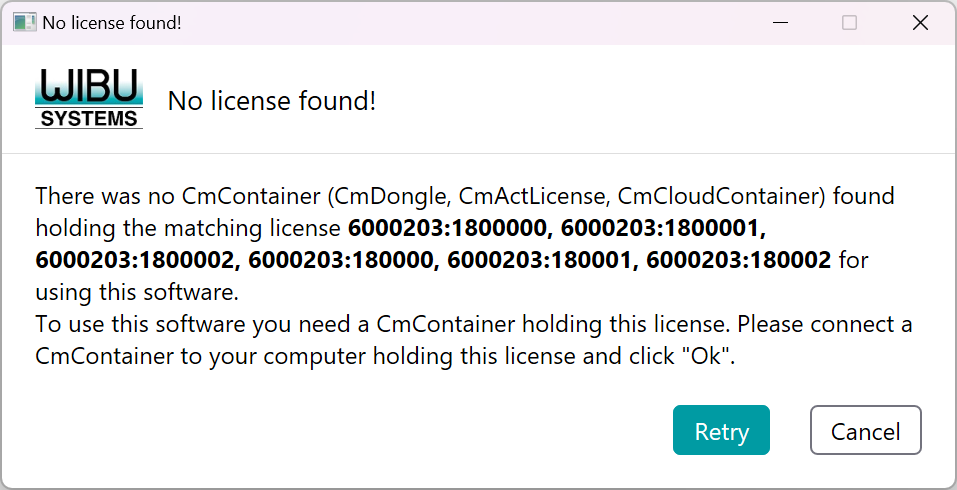
In case a specific license has been selected but it could not be found, the following dialog appears.
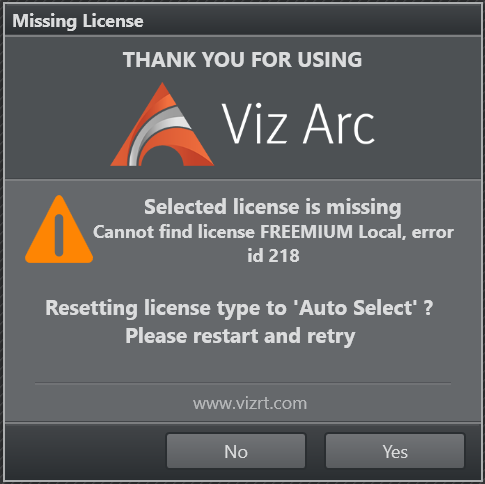
Select Yes to reset the license type to Auto, then start Viz Arc again. When the application starts you can try again to select a specific license.
Select No if you don't want to change the configuration. See the Licensing section for more information.
Command Line Arguments
The application supports several startup switches. Switch names are not case-sensitive (--licensetype and --LicenseType are equivalent).
Switch | Purpose |
|---|---|
| Activates On Air Mode on launch. |
| Loads the specified project at startup (supports |
| Loads the named project from Graphic Hub. |
| Designates a custom ProgramData directory location. |
| Launches without any project (overrides the default behavior of reopening the last project). |
| Activates Object Tracker Mode on startup. |
| Activates Viz Arena Mode on startup. |
| Selects the license to start with, overriding the value stored in |
| Shows the list of available switches and their accepted values, then exits (output is shown when run from a console). |
Note: Running Viz Arc with no arguments also prints the list of available switches to the console (informational only — the application continues to start normally).
Selecting a License at Startup
--LicenseType n overrides the license selection that is otherwise read from Config.json (the same value shown in the License Type drop-down under Settings › Info). This is useful for fresh installations that do not yet have an editable Config.json, or when automatic license detection fails and Viz Arc would otherwise not start.
Accepted values:
Value | License |
|---|---|
| Uses the value stored in |
| Auto Select |
| CORE Network - Local |
| CORE Local - Network |
| CORE Network |
| CORE Local |
| FREEMIUM Network - Local |
| FREEMIUM Local - Network |
| FREEMIUM Network |
| FREEMIUM Local |
| CORE Network - Local V3 |
| CORE Local - Network V3 |
| CORE Network V3 |
| CORE Local V3 |
| FREEMIUM Network - Local V3 |
| FREEMIUM Local - Network V3 |
| FREEMIUM Network V3 |
| FREEMIUM Local V3 |
The override applies to that launch only; it is not written to Config.json automatically. The chosen license appears in the License Type drop-down under Settings › Info — opening and then closing the Settings window saves it to Config.json. From then on Viz Arc starts with that license normally, without the command line.
Values outside the 0–16 range are rejected with an error message, and Viz Arc exits.
Note: Viz Arc REST Service: The REST service uses its own switch, --RESTLicenseType, with a different value set: 0 = Network - Local, 1 = Local - Network, 2 = Network, 3 = Local, 101 = Network - Local V3, 102 = Local - Network V3, 103 = Network V3, 104 = Local V3.
Sample Commands
VizArc.exe --project gh:VirtualSetALaunches the application with "VirtualSetA" loaded from Graphic Hub.
VizArc.exe --project local:ObjectTracker -tLoads "ObjectTracker" from local storage while simultaneously opening the Object Tracker interface.
VizArc.exe --LicenseType 1Starts Viz Arc using the CORE Network - Local license, overriding the stored configuration.
VizArc.exe --helpPrints the available command line switches and their accepted values.