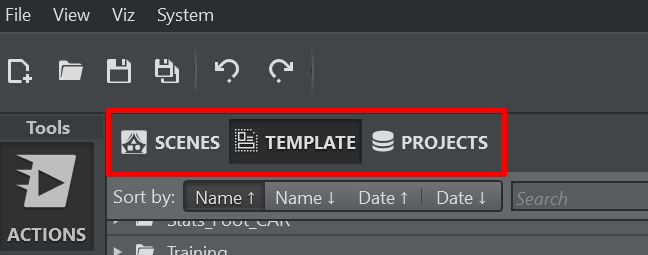
When in builder mode, the Scenes/Template/Projects panel visualizes:
SCENES: Shows the scenes associated with the current project.
TEMPLATE: Gives access to all the templates stored on the Graphic Hub.
PROJECT: Gives quick access to all projects available to the user.
Scenes
Please refer to Scenes Panel.
Templates
The template tab shows all templates available on the connected Graphic Hub.
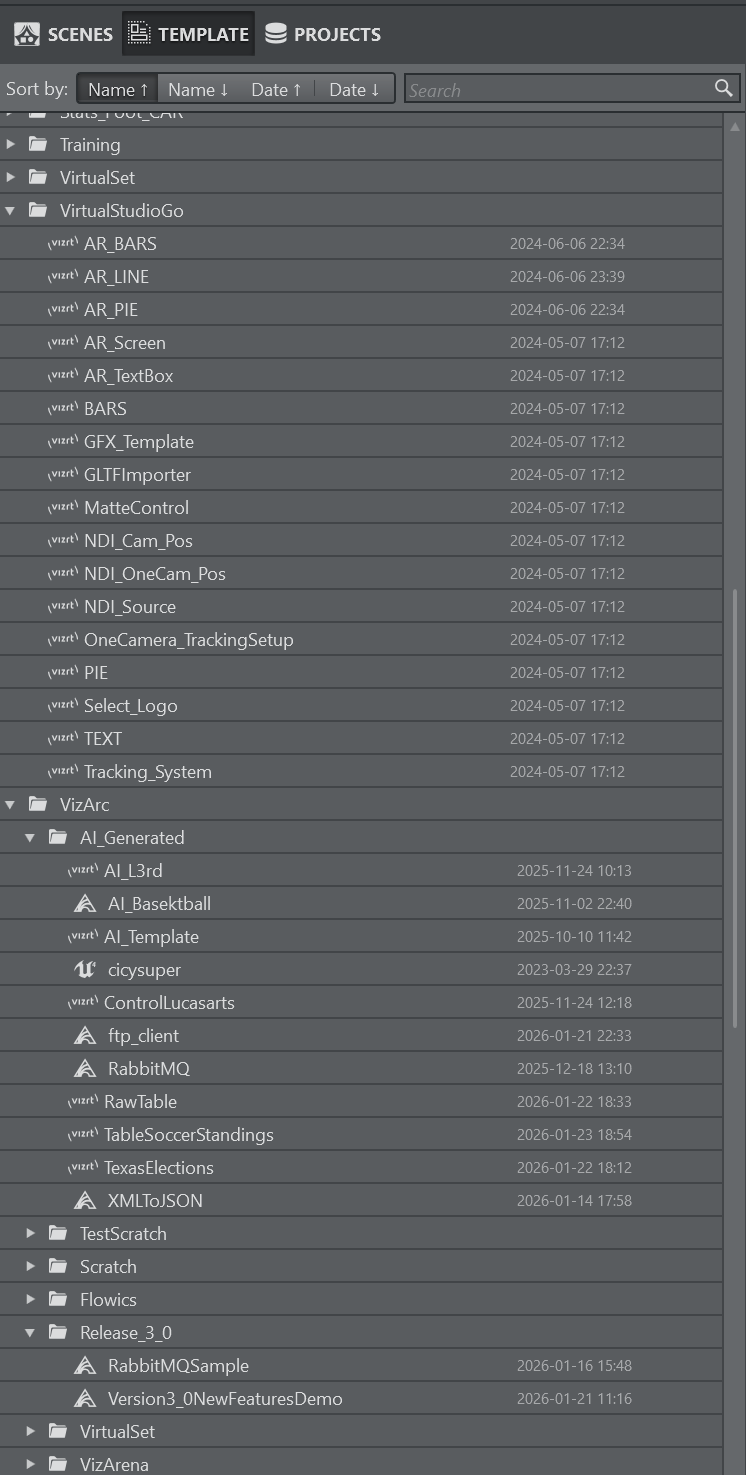
The logo indicates what kind of template it is (Vizrt, Unreal, Flowics or Independent). The date and time indicates the last modification time/date of the template. Templates can be searched for using the search bar and they can be ordered ascending or descending by date or name.
Context Menus
Individual Template
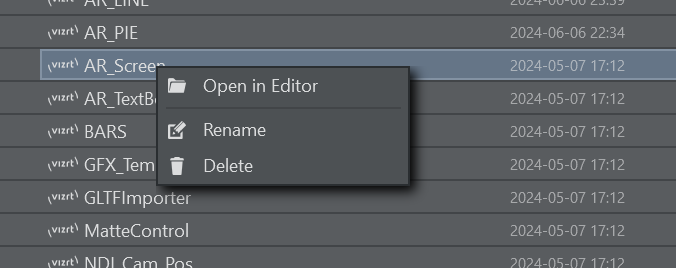
The context menu on a individual template offers the following options:
Open in Editor: Opens the template in the Template Designer for editing.
Rename: Renames the template.
Delete: Deletes a template.
Warning: Please note that the deletion cannot be undone.
Folder
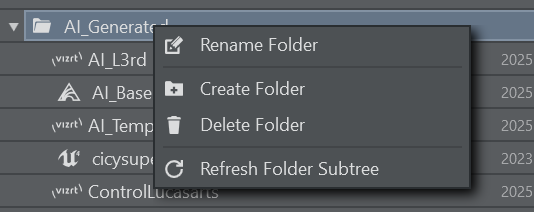
The context menu on a folder:
Rename Folder: Renames the selected folder.
Create Folder: Creates a new folder under the selected folder.
Delete Folder: Deletes the entire folder and its children.
Warning: Please note that the deletion cannot be undone.
Refresh Folder Subtree: Forces a refresh from the connected Graphic Hub of the selected folder and its content.
Moving a Template
Use drag and drop to move a template across folders:
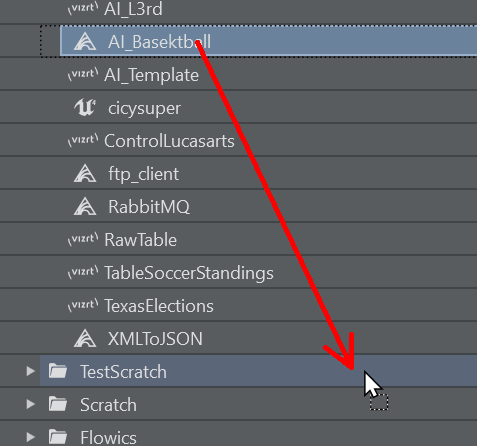
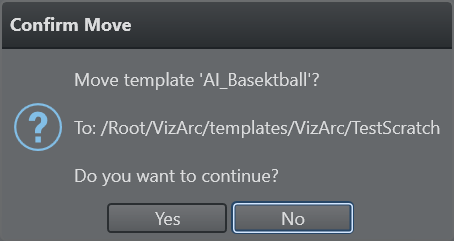
Once dropped a confirmation window asks for confirmation of the move:
Projects
The Projects tab gives you an overview and quick access to all available projects.
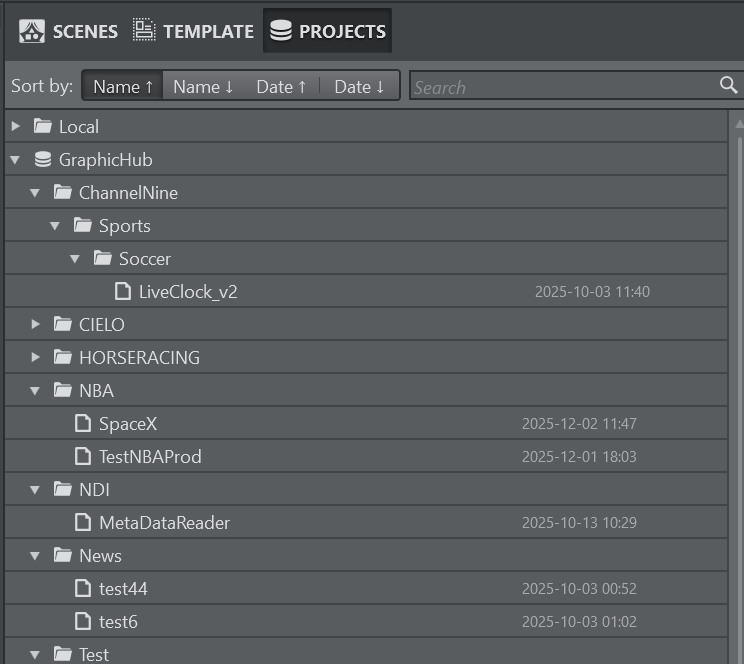
The projects are divided into two main groups, the Local projects (which are stored on the local file system containing a flat hierarchy) and the Graphic Hub (that has the advantage of being accessible from multiple locations and allowing to create folders and subfolders for clear logical separation of the projects). As for the templates, projects can be searched for using the search bar and they can be ordered ascending or descending by date or name.
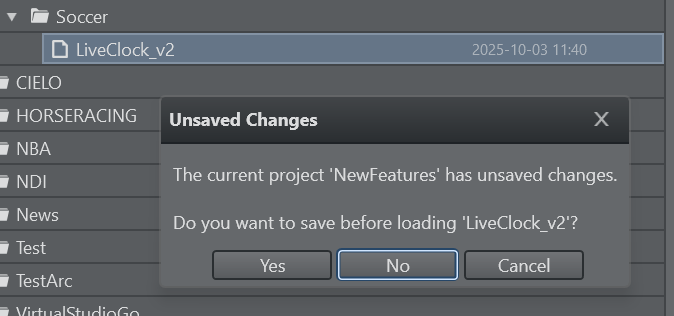
Double click to load a project directly.
Context Menus
Project
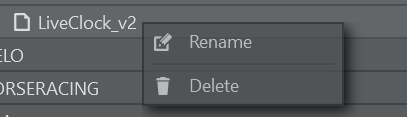
The context menu on the project:
Rename: Renames the selected project.
Delete: Deletes the selected project.
Warning: Please note that the deletion cannot be undone.
Project Folders
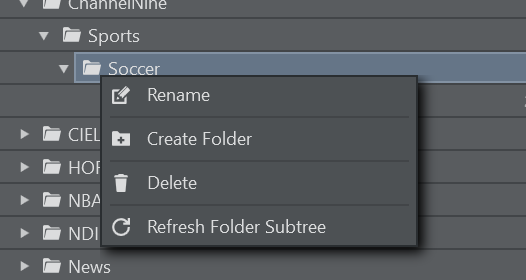
The context menu on project folders:
Rename: Rename the selected folder.
Create Folder: Create e new folder under the selected folder.
Delete: Delete the entire folder and its children.
Warning: Please note that the deletion cannot be undone.
Refresh Folder Subtree: Forces a refresh from the connected Graphic Hub of the selected folder and its content.
Moving a Project
Use drag and drop to move a project across folders:
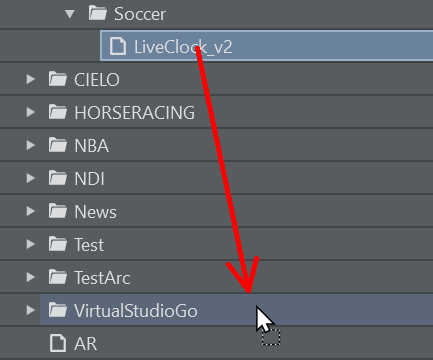
Once dropped a confirmation window asks for confirmation of the move:
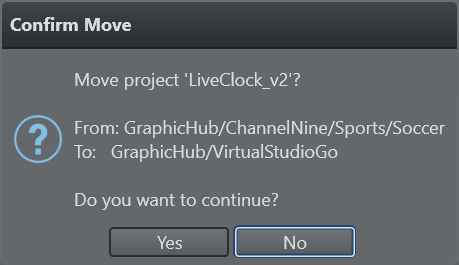
Note: You cannot undo the removal of templates or projects. It is strongly recommended to take backups before removal operations. Either use Viz Arc’s export wizard to backup templates and/or projects or use other means of backing up the Graphic Hub or the local file system containing the Viz Arc projects.