VAM can be installed on hosts that have no internet access. Because the air-gapped target cannot pull container images or packages from the Vizrt registry, you first produce a self-contained offline bundle on a machine that does have internet, transfer it to the target and run the installer against the bundle.
Who this is for. Operators installing VAM into a secured or disconnected network. If your installer host has internet access, use the standard online install instead — it is simpler.
The Three Phases
Connected host (internet) Removable media / file transfer Air-gapped target───────────────────────── ─────────────────────────────── ─────────────────1. vamctl → Prepare offline ──▶ 2. copy the offline bundle ──▶ 3. vamctl → Offline install (downloads everything) (USB / DVD / secure copy) (installs from the bundle)- Prepare offline: on a Windows host with internet, run
vamctland choose Prepare offline installation. It downloads everything the target needs and writes it into a single bundle. - Transfer: copy the bundle to the air-gapped target (USB drive, DVD, or an approved file-transfer path).
- Offline install: on the target, run
vamctland choose Offline installation, pointing it at the transferred bundle.
The connected host and the target can be different machines; nothing from the build host is needed on the target beyond the bundle.
What the Bundle Contains
The prepare-offline step gathers three classes of asset so the target never has to contact a registry:
Asset | What it is |
|---|---|
Talos OS images | The Talos installer image, boot ISO and (for vSphere) the OVA used to bring up the cluster nodes. |
Container images | Every VAM service image plus the third-party images the platform depends on, packaged into a single image cache. |
Packages | The VAM Helm / application packages (the catalog the installer deploys). |
Everything sits next to the installer executable in the bundle, so the whole thing can be copied as one folder or archive.
Phase 1 — Prepare the Bundle (Connected Host)
- On a Windows host with internet access, launch
vamctl.exe. - Choose Prepare Offline Bundle.
- Sign in to the registry, as for a normal install. See Running the Installer.
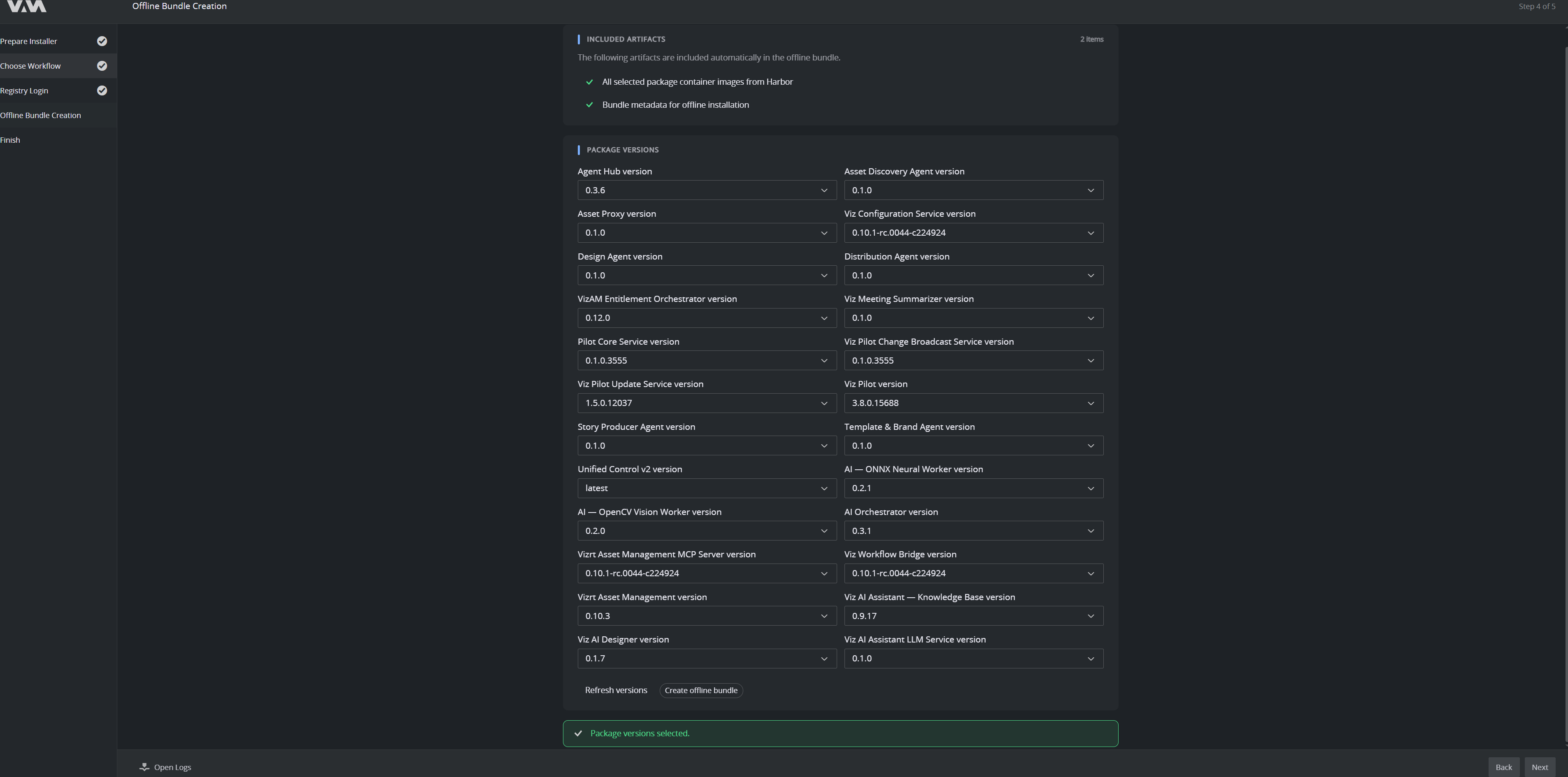
- On Offline Bundle Creation, review the bundle contents. Included artifacts lists what is added automatically: the container images for every selected package, and the bundle metadata the target host needs.
- Under Package versions, choose the version of each package to include. Every package the platform can install has its own version list, pre-filled with the current version from the registry. Use Refresh versions to re-read the registry. The panel confirms Package versions selected when the selection is valid.
- Click Create offline bundle. The installer downloads the Talos images, builds the container-image cache and stages the packages. This takes a while and needs enough free disk for the whole bundle — budget well over the sizes in Prerequisites → Installer host.
- When it finishes, you have a complete offline bundle folder.
The target installs exactly the versions you bundle here. To install newer versions later, produce a new bundle.
Phase 2 — Transfer to the Target
Copy the entire bundle to the air-gapped host using whatever transfer mechanism your environment allows (USB drive, DVD, or a controlled copy). Keep the folder structure intact — do not copy only parts of it.
Phase 3 — Install on the Target (Air-Gapped Host)
- On the air-gapped host, launch
vamctl.exe(from the bundle, or an installed copy). - Choose Offline installation.
- When asked for the package source, point the installer at the transferred bundle (folder or archive) rather than the online registry. The installer switches to local-only mode — it never tries to reach
registry.vizrt.cloud. - Continue exactly as in the standard walkthrough: prerequisite checks, cluster selection and configuration, deployment and the final sanity check. The cluster nodes are pre-seeded from the bundled image cache, so pods start without any external pulls.
If the installer reports that no image cache was found, the bundle is incomplete or the wrong folder was selected — re-check the transfer and point it at the bundle root.
Notes and Limitations
- Licensing still applies. An offline install still needs a valid WIBU license — a soft-license file or a reachable CodeMeter dongle. See Prerequisites → Licensing.
- Identity provider. If you use an external OIDC provider, the cluster still needs network access to that provider for sign-in, even when the install itself is offline. The bundled Keycloak avoids that external dependency.
- VMware offline provisioning has additional constraints; if you are targeting vSphere in an air-gapped environment, confirm the supported path with your Vizrt representative before you start.