Data Server Config is the web-based administration interface for the Pilot Database Settings. It is used to configure the system-wide settings that Pilot Edge, Template Builder and other Vizrt clients read from the Pilot Data Server.
See Also
You open it in a browser at:
https://hostname:port/app/DataServerConfig/
Replace <hostname> with the machine running Pilot Data Server, and the port if you have changed it from the default 8177. If Single Sign-On is enabled, you are prompted to log in first.
Caution: These settings apply to every client connected to this Pilot Data Server. Changes should only be made by administrators. Some changes require a Pilot Data Server restart before they take effect.
Panels
Data Server Config is organized into panels, selectable from the segmented control at the top of the window:
Panel | Purpose |
|---|---|
Parameters | The central list of Pilot Data Server database parameters (the "VCP parameters"). This is where you set core system values such as the Preview Server, Graphic Hub and Crop Service addresses. |
Search Providers | Configure the asset search providers (for example Viz One) and the pre-authenticated hosts used when searching for and browsing media. |
Tags | Administer the tags that are assigned to templates in Template Builder and used to organize templates in the clients. |
Asset Guests | Register external asset sources ("guests") that appear as extra tabs in the Pilot Edge asset browser. Each guest has an ID, a display name and a URL. |
Pilot Edge | Default user-interface settings for Pilot Edge, such as the default template sorting and which top-bar tabs are shown. This is the recommended place to configure Pilot Edge behavior for all users. |
Parameters panel
The Parameters panel is the modern replacement for the old VCP Parameters page. It shows the Pilot Data Server database parameters as an editable list with a description for each parameter.
Common tasks:
Filter – type in the filter box to quickly locate a parameter by name.
Edit a value – change the value directly in the list and click Save.
Add New Optional Parameter – add a parameter that is not present by default (for advanced/optional settings).
Delete Selected Optional Parameter – remove an optional parameter you previously added.
Reset all – discard your unsaved edits and reload the values currently stored on the server.
A curated reference of the most relevant parameters for a modern Pilot Edge system is documented on the sub-page.
Most important settings for a Pilot Edge system
For a modern Pilot Edge deployment, these are the parameters you are most likely to need:
Parameter | What it does |
|---|---|
| The public URL of this Pilot Data Server (or the reverse proxy in front of it), e.g. |
| URL of the Graphic Hub REST API used to provide scenes, e.g. |
| Base URL of the Preview Server used to generate preview images in the editor, e.g. |
| URL of the image Crop Service, e.g. |
| URL of the Pilot Edge HTML MOS plug-in. Trio will also use this as the default Pilot Edge Editor. |
| Spell check language code. |
| Relative path or URL to the spellcheck dictionaries. |
| Channel video mode, |
Note: Legacy ActiveX / Pilot News desktop parameters (the many ax_* options, MOS-plugin tuning, Object Store / VOS password settings, and the old Script Runner update service) are still present for backwards compatibility but are generally not relevant when running a modern Pilot Edge system.
Search Providers panel
Both the clients and the Pilot system read their asset search configuration from Pilot Data Server. On this panel you can:
Asset Search Providers – add, rename, enable/disable and delete search providers by entering the provider's Service Document URL and a short Label shown in search results (for example a Viz One
thirdpartyservice document).Authenticated Hosts – register hosts together with a URL, username and password so that searches and the Feed Browser can authenticate against them (typically required for Viz One).
Note: Changing a provider's short name, or changing pre-authenticated hosts, requires a Pilot Data Server (and Crop Server) restart before the change takes effect.
Tags panel
The Tags panel is used to administer the tags assigned to templates in Template Builder. Tags are then used in the clients to filter and organize the template list.
Function | Description |
|---|---|
Add tag | Add a new tag name. |
Rename tag | Select a tag, enter a new name and save. |
Delete tag | Delete a selected tag. Deleting a tag does not delete the templates that reference it. |
Filter | Type to filter the tag list by name. |
Asset Guests panel
The Asset Guests panel registers external asset sources that appear as additional tabs in the Pilot Edge asset browser. Each entry consists of:
ID – a unique identifier for the guest.
Name – the label shown on the tab in the asset browser.
URL – the address of the asset guest.
IDs must be unique and non-empty; the panel validates this before allowing you to save.
Pilot Edge panel
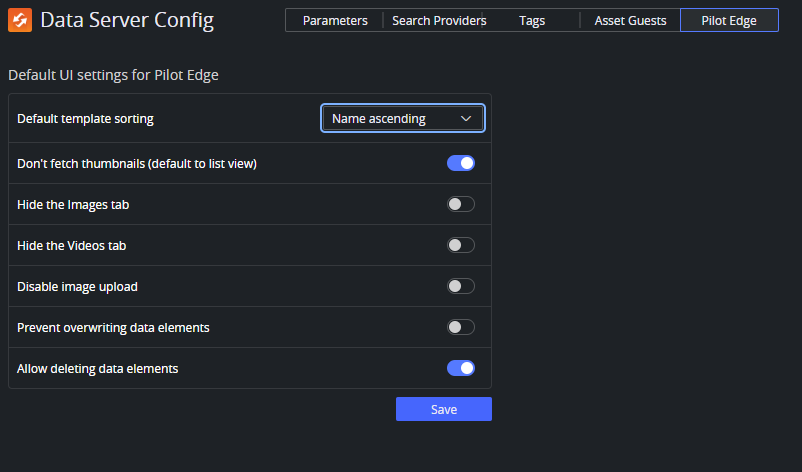
The Pilot Edge panel configures the default user-interface behavior of Pilot Edge for all users on this server. Individual users can still override most of these afterwards in their own session.
Setting | Description |
|---|---|
Default style | The style from the Template Builder Style Editor that Pilot Edge and Template Builder forms use by default. Built-in style uses no custom style. Stored in the |
Themes | The themes users can switch between in Pilot Edge and Template Builder, including the palettes of the Style Editor: Dark and light (default), Dark only or Light only. With only one theme, the theme toggle is hidden. |
Default template sorting | The sort order used for the template list the first time a user opens Pilot Edge. |
Don't fetch thumbnails (default to list view) | Show the template and element browser as a list without thumbnails by default. |
Hide the Images tab | Hide the Images tab in the Pilot Edge top bar. |
Hide the Videos tab | Hide the Videos tab in the Pilot Edge top bar. |
Disable image upload | Disable uploading and pasting images into image fields. |
Prevent overwriting data elements | Prevent users from overwriting existing data elements when saving (only Save As is available). |
Allow deleting data elements | Allow users to delete data elements from the element browser. |
Show playout instructions | Show the playout instructions when editing a graphic in Pilot Edge and in Template Builder run mode. On by default. Template scripting can override it per graphic with |
Hide tags in media search | Hide the tags filter when searching for images and videos in Pilot Edge. Off by default. |
Hide tags in template search | Hide the tags filter when searching for templates in Pilot Edge. Off by default. Profiles that restrict the available tags still show it. |
Viz Maps | Settings for the Viz Maps service used by the map editors in Pilot Edge and Template Builder, stored in the |
These options are stored in Pilot Data Server database parameters (for example env-style, ax_hide_images, ax_hide_videos, ax_disableupload, ax_disable_data_overwrite, delete_data_from_activex, and the pilotedge_settings value that holds the template sorting, themes, playout instructions and tag-hiding settings). You normally do not need to edit those parameters directly – use this panel instead.