Welcome to the Viz Trio User Guide.
What is Viz Trio?
Viz Trio provides all the features of a typical CG (Character Generator) system and more.
With Viz Trio you can easily:
Trigger graphical elements stored as pages in a show structure, with each page utilizing a unique call-up code.
Fill in data fields for graphics.
Quickly import or re-import new graphics into a show, no need for a template redesign, everything happens automatically.
Play clips with a timeline editor.
As a graphics playout server, integrate with third-party system, using macro commands over TCP/IP.
Have script-free, live data updates through Vizrt’s Datacenter.
Customize the Viz Trio interface, with macros and scripting.
With Viz Trio advanced features you can:
Connect to multiple newsroom systems.
Perform seamless context switches on graphics (Transition Logic).
Connect specialized editors for changing almost any property of a graphic.
Produce on-the-fly graphics with the inbuilt design tool, and much more.
System Overview - Basic Setup
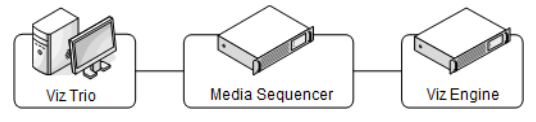
Viz Engine is the graphics rendering output system and Media Sequencer controls the playout of media elements.
Info:
The system overview above shows a basic setup. Viz Engine is typically used for local preview.
The Viz Trio client runs on any computer with a network connection to the Media Sequencer.
For the local preview, the computer must have a recent Nvidia GPU.Whilst Viz Trio, Media Sequencer and Viz Engine can be installed and operated on a single machine, for performance and security reasons they are usually installed on separate servers.
The Viz Trio operator creates pages, most often from existing templates.
A page is an instance of a template, customized with data values, like sports results or election data.When the page is ready, the Viz Trio operator simply sends the page and accompanying information, to air.
Viz Trio employs the Vizrt Media Sequencer (MSE) to trigger final rendering of the output by the Viz Engine.
Viz Trio connects to news feed and media resources, including Vizrt’s media asset management from Viz One and Viz Pilot.
Ingest news and social media feeds into the production workflow with Viz Social.
System Overview - Advanced Setup
An advanced setup with newsroom and video integration involves several other Vizrt products such as a Vizrt MAM system, Viz Pilot, Viz Gateway and third-party systems such as a newsroom and database system.
Viz Gateway can be used to connect Viz Trio to most newsroom systems using the MOS protocol.
Info: Director from Viz Pilot can also be used as the control application.
Related Documents
Viz Artist User Guide: How to create standalone and transition logic scenes.
Viz Pilot User Guide: How to create a playlist in Viz Pilot that can be monitored in Viz Trio, and use the Newsroom Component to create newsroom data elements for a newsroom system playlist.
Viz Engine Administrator Guide: How to configure your Viz Engines.
Viz One Administrator Guide*: How to configure your Viz One system.
Viz One - Studio User Guide*: How to work with your Viz One system.
Info: Excerpts from resources marked * are available to customers with a valid Vizrt Support agreement.
Feedback and Suggestions
We encourage suggestions and feedback about our products and documentation. To give feedback and/or suggestions, please contact your local Vizrt customer support team at www.vizrt.com.
Support
Support is available at the Vizrt Support Portal.
For more information about all Vizrt products, visit:
Legal
Copyright ©2026 Vizrt. All rights reserved.
No part of this software, documentation or publication may be reproduced, transcribed, stored in a retrieval system, translated into any language, computer language, or transmitted in any form or by any means, electronically, mechanically, magnetically, optically, chemically, photocopied, manually, or otherwise, without prior written permission from Vizrt. Vizrt specifically retains title to all Vizrt software. This software is supplied under a license agreement and may only be installed, used or copied in accordance to that agreement.
Disclaimer
Vizrt provides this publication “as is” without warranty of any kind, either expressed or implied. This publication may contain technical inaccuracies or typographical errors. While every precaution has been taken in the preparation of this document to ensure that it contains accurate and up-to-date information, the publisher and author assume no responsibility for errors or omissions. Nor is any liability assumed for damages resulting from the use of the information contained in this document.
Vizrt’s policy is one of continual development, so the content of this document is periodically subject to be modified without notice. These changes will be incorporated in new editions of the publication. Vizrt may make improvements and/or changes in the product(s) and/or the program(s) described in this publication at any time. Vizrt may have patents or pending patent applications covering subject matters in this document. The furnishing of this document does not give you any license to these patents.
Antivirus Considerations
Vizrt advises customers to use an AV solution that allows for custom exclusions and granular performance tuning to prevent unnecessary interference with our products. If interference is encountered:
Real-Time Scanning: Keep it enabled, but exclude any performance-sensitive operations involving Vizrt-specific folders, files, and processes. For example:
C:\Program Files\[Product Name]
C:\ProgramData\[Product Name]
Any custom directory where [Product Name] stores data, and any specific process related to [Product Name].
Risk Acknowledgment: Excluding certain folders/processes may improve performance, but also create an attack vector.
Scan Scheduling: Run full system scans during off-peak hours.
False Positives: If behavior-based detection flags a false positive, mark that executable as a trusted application.
Technical Support
For technical support and the latest news of upgrades, documentation, and related products, visit the Vizrt web site at www.vizrt.com.
See Also