Creating an IAM Role
If you have not defined any IAM roles for Viz Now, follow these guidelines.
Info: Where you already have defined Viz Now IAM roles in your AWS account, see Update Existing IAM Roles.
Defining a new IAM Role
You will create both a Deploy role and a Management role, and associate customized Viz Now trust relationships and policies.
Tip: For a comprehensive explanation of roles, refer to the Permissions Explained section.
To define an IAM role in Viz Now
Log in to Viz Now and navigate to Organization > Infrastructure tab > Manage IAM Roles.
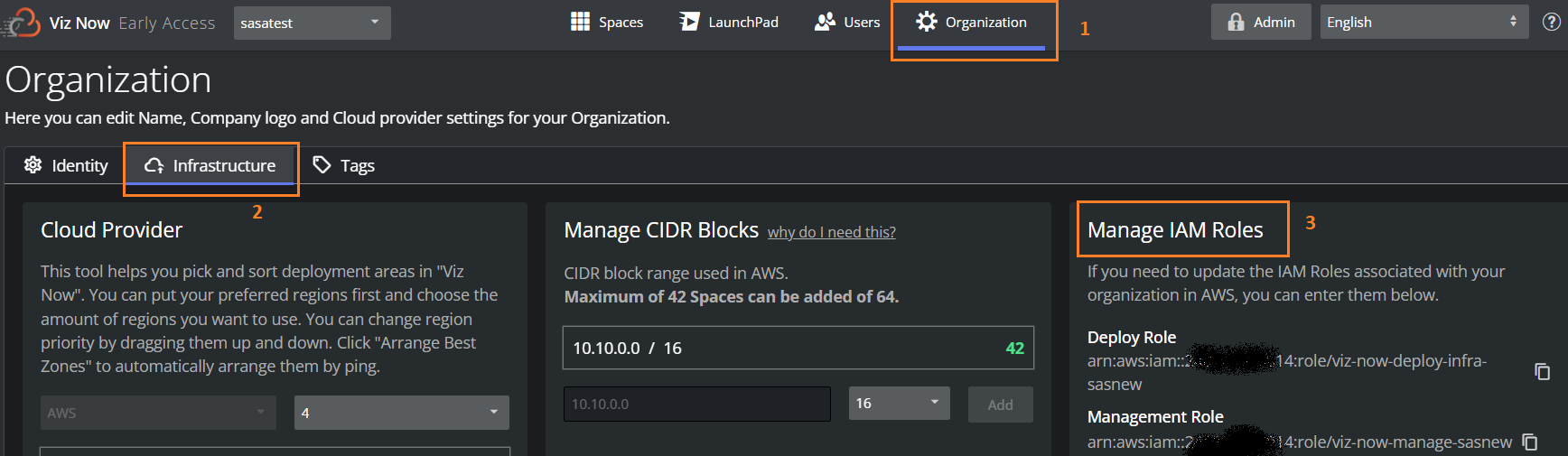
You’ll see a screen like the one below, where you define the IAM Roles ARNs needed for a Deploy role.
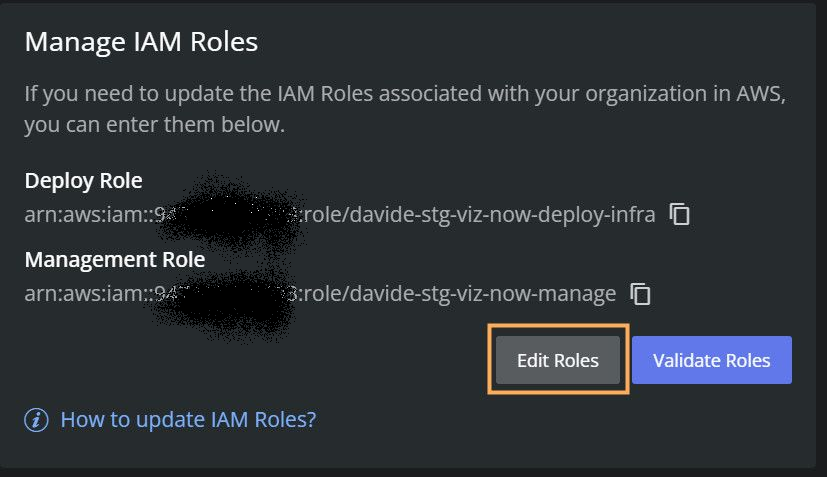
Deploy Role
The role viz-now-deploy-infra allows deploying infrastructure in your AWS Account.Log in to the AWS Management Console with IAM Administrator rights.
Back in Viz Now, click Edit Roles.

Next to the Deploy Role input field, click the
 icon.
icon.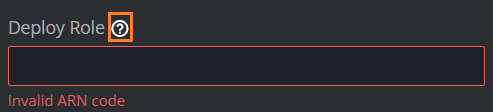
From the pop-up, follow the link click here to open the AWS console.
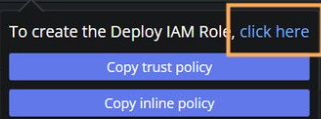
The AWS console opens in a new tab (if not logged-in, you will need to authenticate).
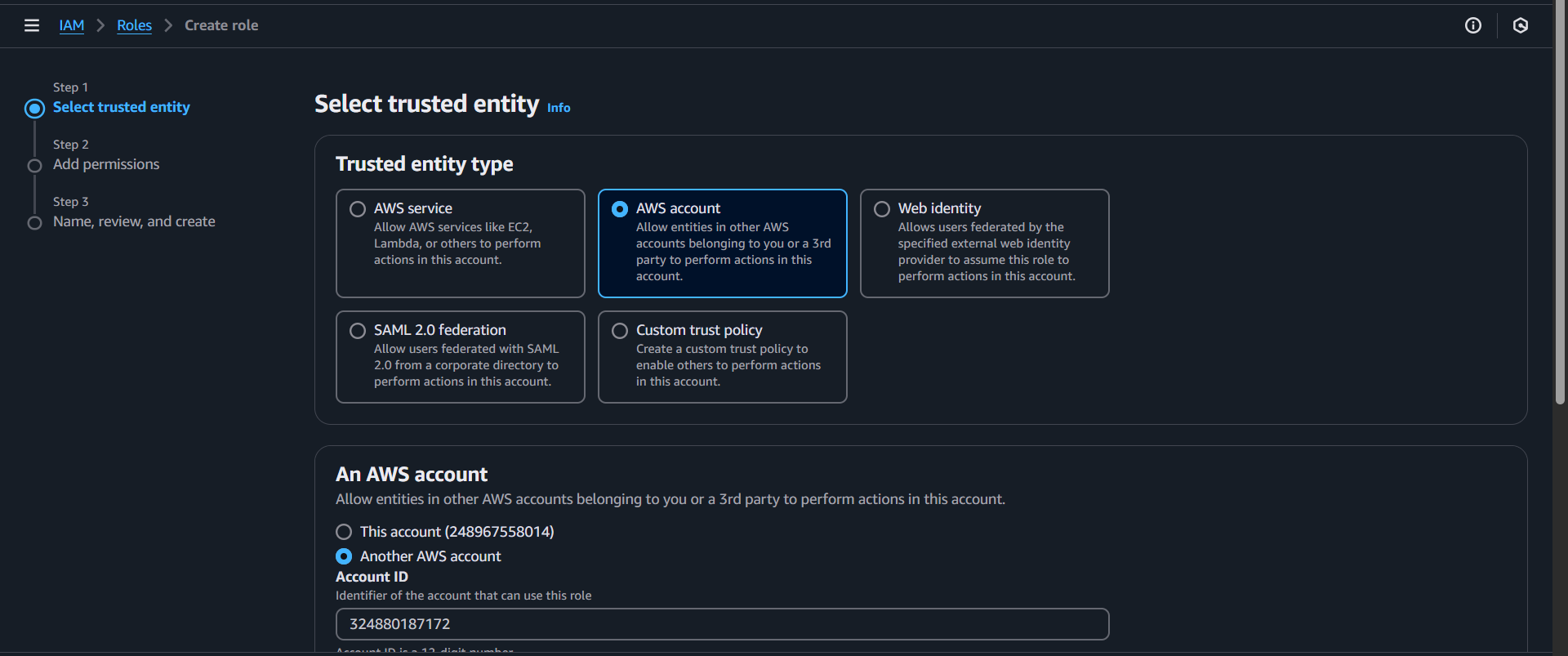
Click Next twice to skip the Add permissions step and arrive at Name, review, and create.
Role Name is pre-populated as: viz-now-deploy-infra.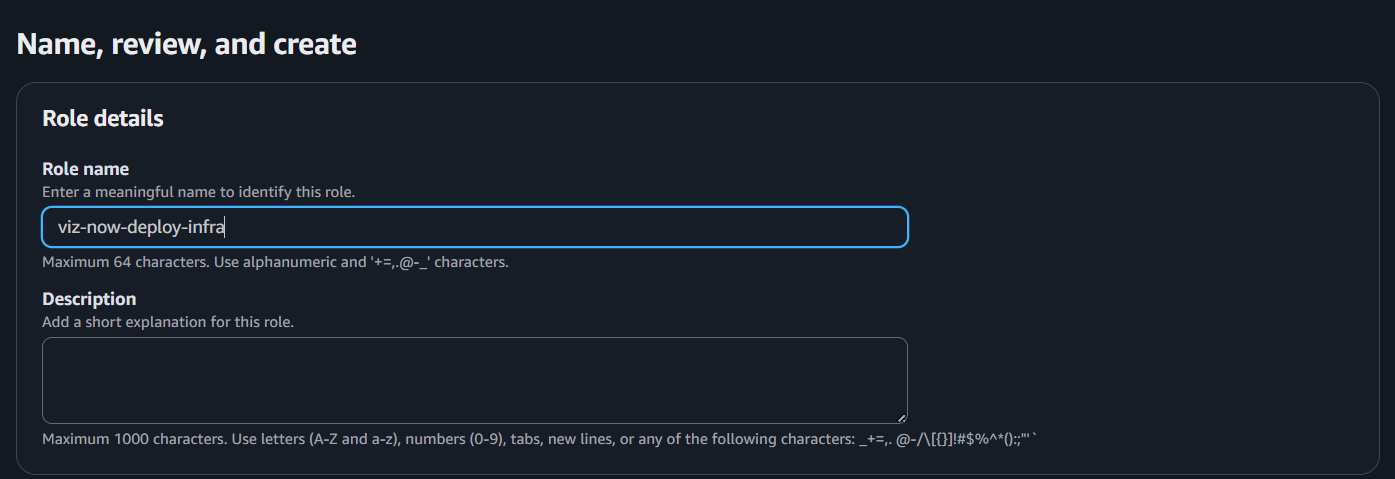
Click Create Role.
A confirmation message is displayed.
Note: If a warning indicates that the name already exists, update it by adding a suffix, for example: viz-now-deploy-infra-something else.
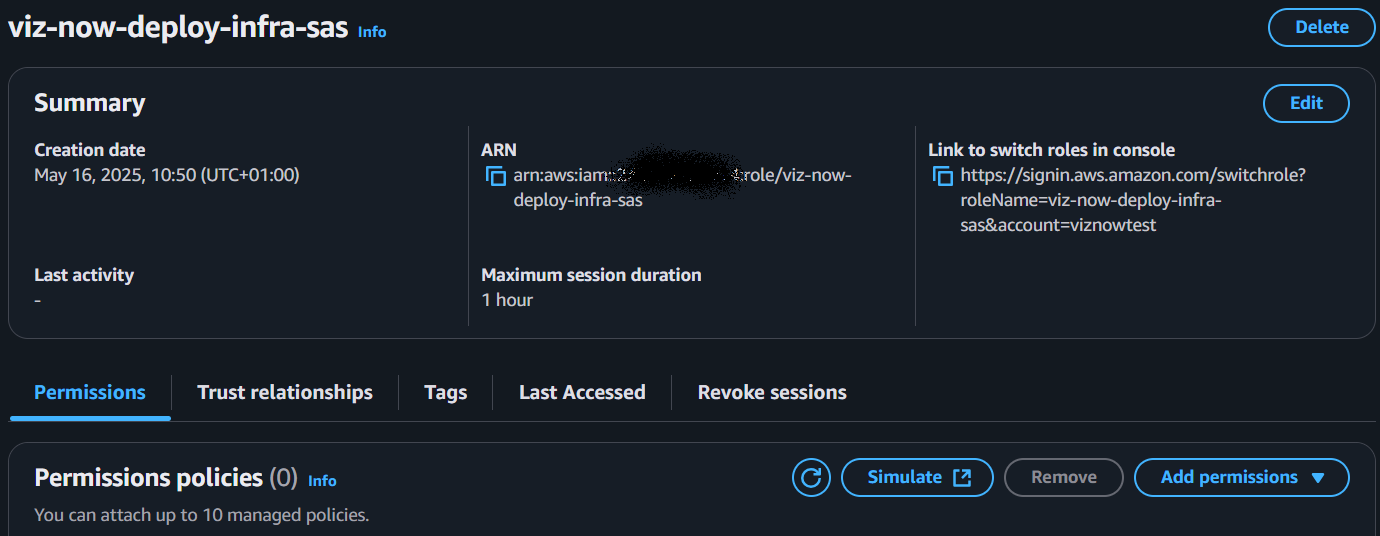
Click View role, AWS opens with the Summary page of the new role:
Update the Trust Policy
Back in Viz Now, click Copy trust policy.
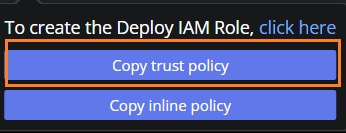
Switching back to the AWS console, on the tab Trust relationships, click Edit trust policy.

Paste the trust policy and click Update Policy.
The JSON code, shown below and which you can copy, is verified.
{"Version":"2012-10-17","Statement": [{"Effect":"Allow","Principal": {"AWS":"arn:aws:iam::324880187172:root"},"Action":"sts:AssumeRole","Condition": {"StringLike": {"sts:ExternalId":"SpaceliftIntegration@*"}}}]}
Code | Explanation |
|---|---|
Principal | Allows the Deployment Agent’s AWS account (here |
Condition | Ensures the external ID starts with |
Continue in the AWS console by clicking the role’s name in the breadcrumbs to reach the role’s Summary page:

From the Permissions tab, click Add permissions > Create inline policy.

Go back to Viz Now, and from the input field Deploy Role, click Copy inline policy.
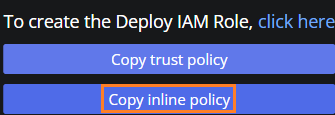
Back to the AWS console, in the Policy editor, click the JSON button and then paste the inline policy into the Policy editor.
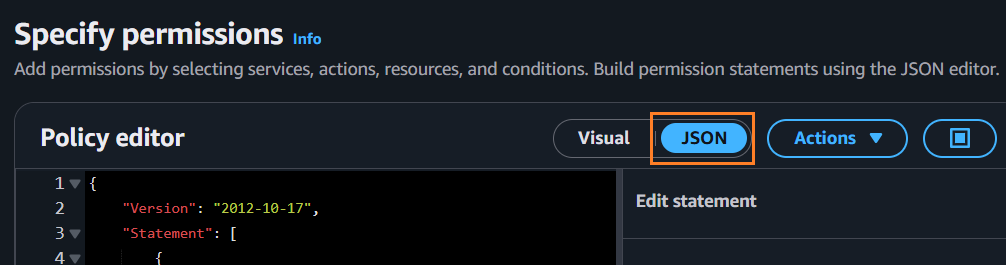
The pasted JSON looks like:
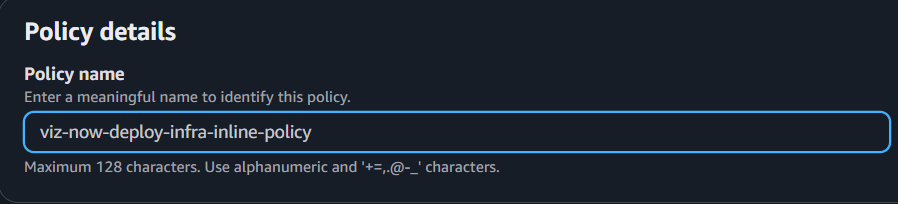
{"Version":"2012-10-17","Statement": [{"Sid":"VizNowDeployInfra0","Effect":"Allow","Action": ["iam:*","s3:*","kms:*","route53:*","sts:*","ec2:*","tag:*","logs:*"],"Resource":"*"}]}Click Next, and in the input field Policy name, name the policy (for example use, viz-now-deploy-infra-inline-policy) and click Create policy.
Associate the IAM Role in Viz Now:
Copy the role’s ARN from the AWS Console.
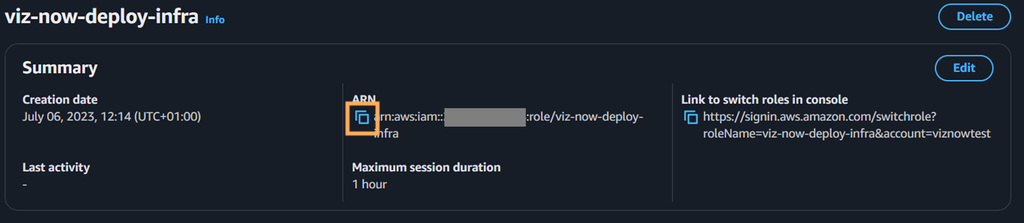
Over in Viz Now, in Manage IAM Roles, paste the ARN from the clipboard into the field Deploy Role.
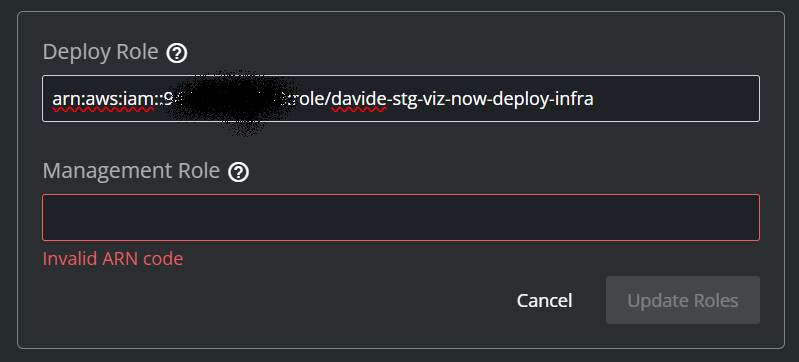
(The Update Roles button will be enabled only after filling the Management Role ARN in the next steps).
Management Role
The viz-now-manage role enables Viz Now to manage deployed instances and perform operational tasks.
Still in the Manage IAM Roles menu, click the
icon next to the input field Management Role.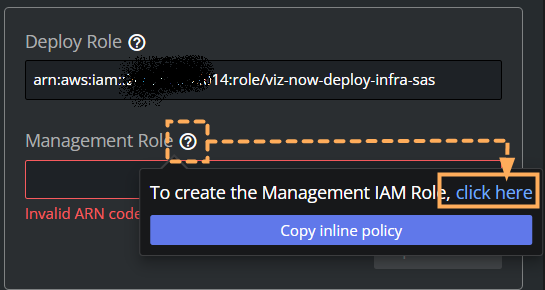
Follow the link Click here, the AWS Console opens.
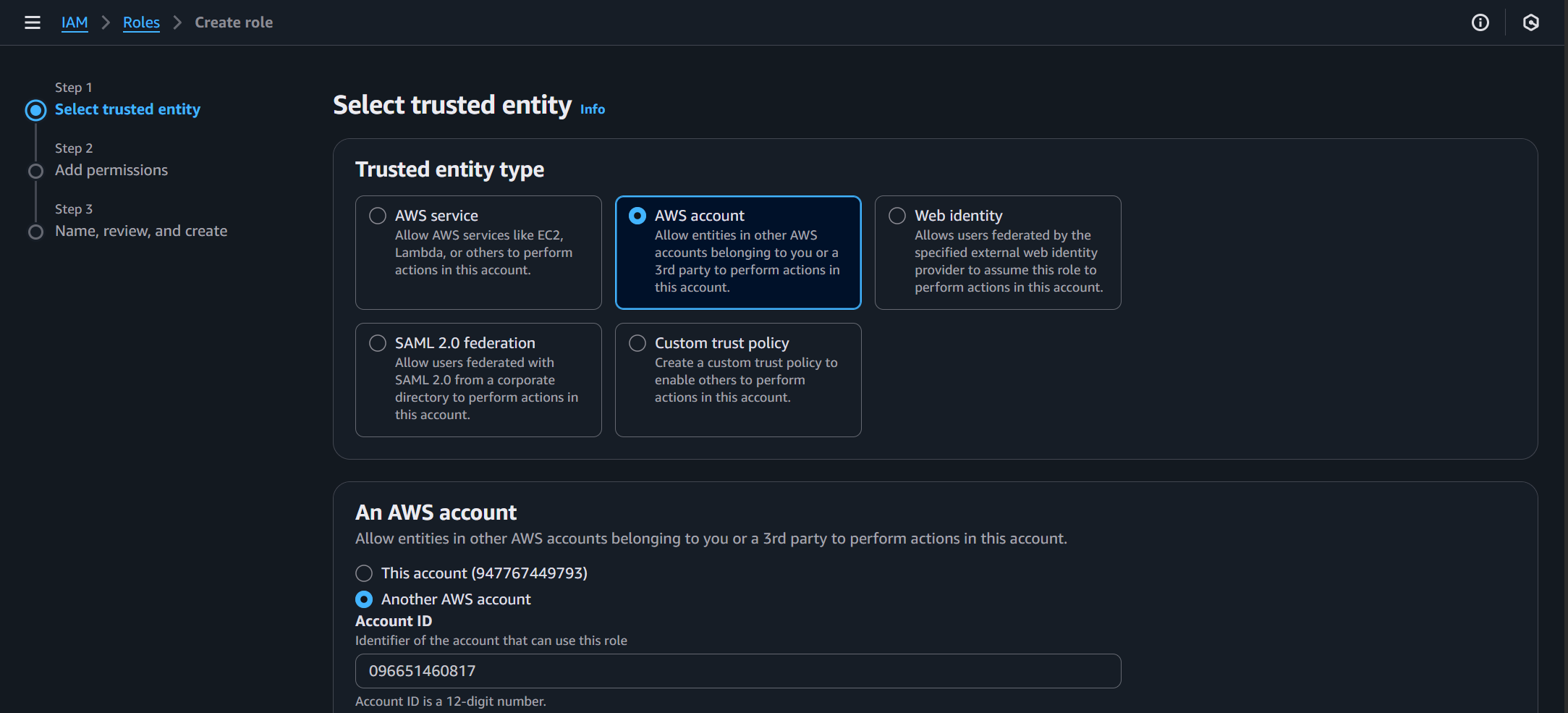
Click Next twice to skip the Add permissions step and arrive at the Name, review, and create menu.
Role Name is pre-populated as viz-now-manage.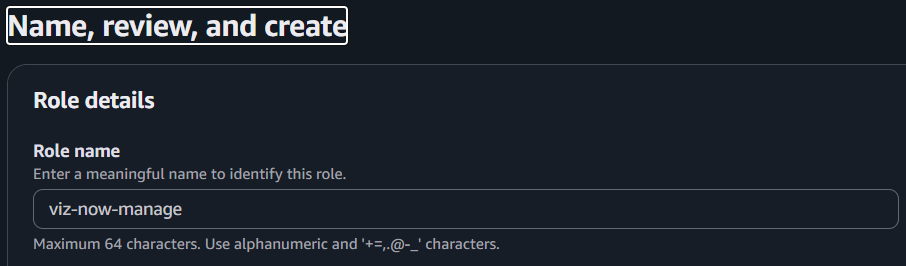
Click Create Role.
Note: If a warning indicates that the name already exists, update it by adding a suffix, for example: viz-now-manage-something else.Click View role.
A confirmation message is displayed:
Add Inline permissions:
Switch to the AWS console, and from the role’s Summary page, click Permissions tab > Add permissions > Create inline policy.
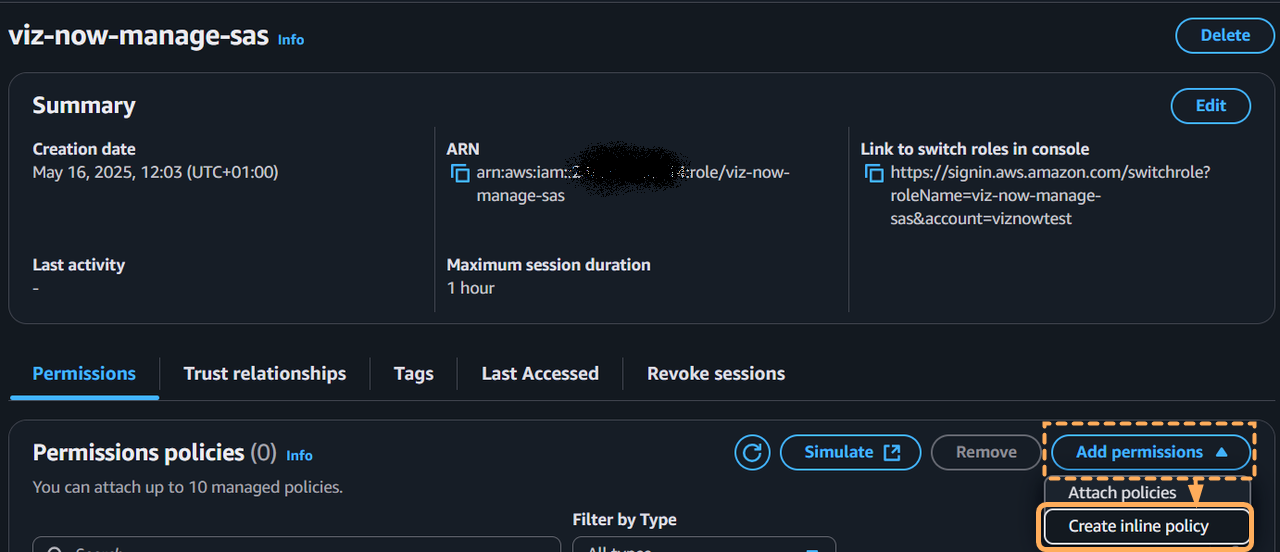
Go back to Viz Now, and next to the input field Management Role, click the
icon, then, Copy inline policy.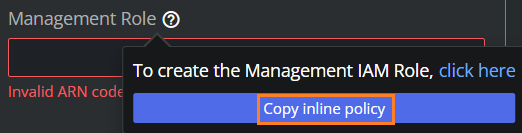
Switch to the AWS console and click the JSON button.
Paste the inline policy into the Policy editor.
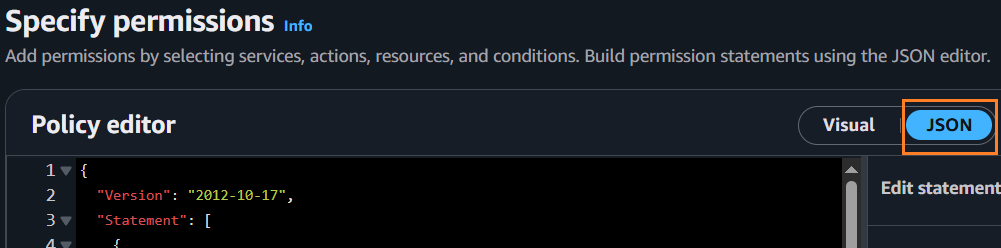
In the Editor, the pasted-in the JSON code will look like:
{"Version":"2012-10-17","Statement": [{"Sid":"VizNowManage0","Effect":"Allow","Action": ["iam:*","kms:*","route53:*","servicequotas:*","s3:*","ec2:*","tag:*","sts:*","logs:*"],"Resource":"*"},{"Sid":"AllowSSMDocumentsForSendCommand","Effect":"Allow","Action":"ssm:SendCommand","Resource":"arn:aws:ssm:*:*:document/*"},{"Sid":"AllowSendCommandToVizNowInstances","Effect":"Allow","Action": ["ssm:SendCommand"],"Resource":"arn:aws:ec2:*:*:instance/*","Condition": {"StringEquals": {"ssm:ResourceTag/VizNow":"true"}}},{"Sid":"AllowCommandInvocationChecks","Effect":"Allow","Action": ["ssm:ListCommandInvocations","ssm:GetCommandInvocation"],"Resource":"*"},{"Sid":"AllowSSMInventoryReadOnly","Effect":"Allow","Action": ["ssm:ListInventoryEntries","ssm:DescribeInstanceInformation"],"Resource":"*","Condition": {"StringEquals": {"ssm:ResourceTag/VizNow":"true"}}},{"Sid":"AllowCreateMediaConnectFlows","Effect":"Allow","Action": ["mediaconnect:CreateFlow"],"Resource":"*"},{"Sid":"AllowManageVizNowFlowsByName","Effect":"Allow","Action": ["mediaconnect:DeleteFlow","mediaconnect:UpdateFlow","mediaconnect:StartFlow","mediaconnect:StopFlow","mediaconnect:AddFlowOutputs","mediaconnect:RemoveFlowOutput","mediaconnect:UpdateFlowOutput","mediaconnect:AddFlowSources","mediaconnect:RemoveFlowSource","mediaconnect:UpdateFlowSource","mediaconnect:AddFlowVpcInterfaces","mediaconnect:RemoveFlowVpcInterface","mediaconnect:GrantFlowEntitlements","mediaconnect:UpdateFlowEntitlement","mediaconnect:DescribeFlow","mediaconnect:ListEntitlements"],"Resource":"arn:aws:mediaconnect:*:*:*VizNow-*"},{"Sid":"AllowListMediaConnectFlows","Effect":"Allow","Action": ["mediaconnect:ListFlows","mediaconnect:DescribeFlow","mediaconnect:ListTagsForResource"],"Resource":"*"}]}Click Next, and in Policy name, provide an identity for the policy (for example, use: viz-now-manage-inline-policy), and then click Create policy.
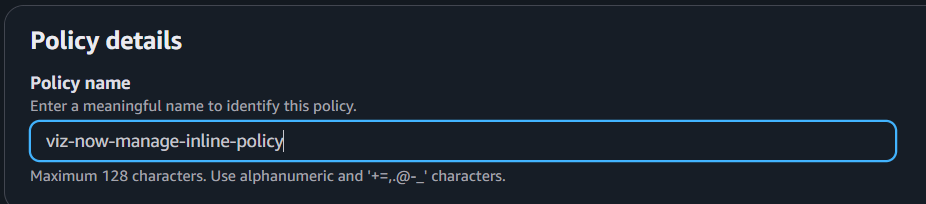
Associate and update the IAM Role in Viz Now:
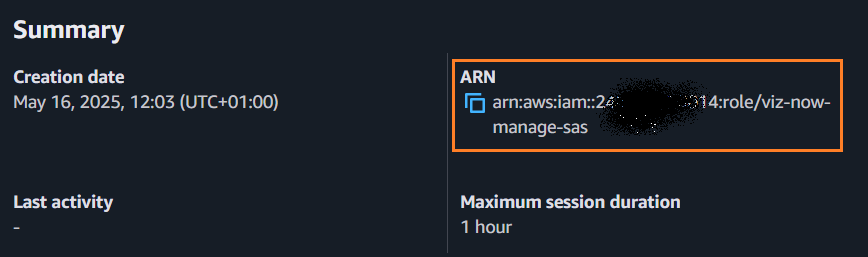
Copy the role’s ARN from the AWS Console on the Summary page.
In Viz Now Manage IAM Roles panel, paste the ARN in Management Role field.

To save, click Update Roles.
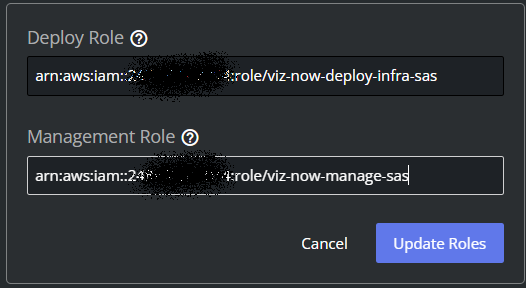
Viz Now validates the updated roles:
