Overview
Viz Now supports Bring Your Own Capacity (BYOC), enabling users to override the default short-lived capacity reservation mechanism and instead attach pre-existing AWS Capacity Reservations directly to individual apps.
This is especially beneficial for:
Customers with long-term Reserved Capacity (for example, one or three year term CRs)
Workloads that rely on scarce or highly requested instance types
Organizations with internal cost tracking, security policies, or lifecycle governance that require tighter control over cloud allocation.
How It Works
For each app, within the App Details window, in the Instance Type section, users can select:
Viz Now Managed (default, using ephemeral CRs)
Use my reservation (manual assignment of an existing CR ID).
When BYOC is selected:
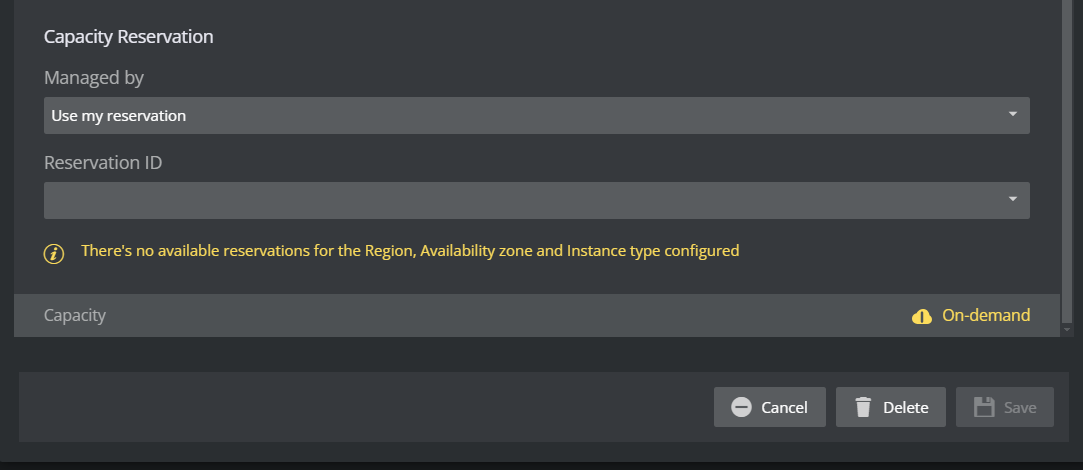
A dropdown menu will show compatible reservations filtered by Region, Availability Zone, and Instance Type
If no valid CR is found, Viz Now will alert the user and fallback to On-Demand.
Requirements
✅ Region and Availability Zone must be explicitly set in the space configuration, since CRs are zone-specific.
❗ This feature is only available for draft spaces that have both Region and Availability Zone explicitly specified. Draft spaces without this configuration will not support BYOC.
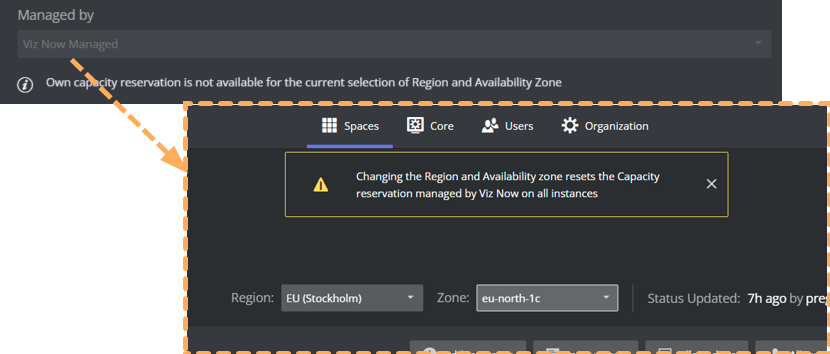
⚠️ Note: If you later change the Region or AZ of the space, any BYOC configuration will reset to Viz Now Managed. A warning message is shown to ensure transparency.
UI Behavior
When no CRs are detected for the selected parameters, the message:
There’s no available reservations for the Region, Availability Zone and Instance type configured is displayedIf the Region/AZ combination doesn’t support BYOC, the selector will be disabled with a message: Own capacity reservation is not available for the current selection of Region and Availability Zone.
Creating a Compatible Capacity Reservation in AWS
To bring your own Capacity Reservation into Viz Now, you must create a targeted CR in AWS that meets specific tagging and configuration requirements.
Tagging and Configuration Requirements Overview
Requirement | Description |
|---|---|
Targeted CR | Reservation must target a specific Availability Zone (AZ) |
Tag: VizNow:true | Required to make the reservation visible in Viz Now |
Matching Instance Type | Must match the instance type used by the Viz Now app (e.g., g4dn.xlarge) |
Matching Platform | Must match platform (e.g., Windows, Linux/UNIX) |
Region | Must be in the same region selected in Viz Now |
Availability Zone | Must match the one selected in the Viz Now UI |
Instance Count | Should match or exceed the number of app instances expected |
Info: Creating reservations is done through the AWS Console / AWS CLI. For step-by-step AWS instructions, consult the AWS documentation on EC2 Capacity Reservations.
https://docs.aws.amazon.com/AWSEC2/latest/UserGuide/capacity-reservations-create.html
Verifying the Reservation
To verify a reservation in Viz Now
Once your CR is created:
Open Viz Now and navigate to your Space
Select the relevant App
Change Managed by from Viz Now Managed to Use my reservation
Select your CR from the dropdown menu.
If your reservation does not appear, check:
Tag is present (
VizNow:true)Region and Availability Zone match
Instance Type and Platform are correct
The CR is in active state.