One-time Configuration
For a background to Flowics, details on initial configuration of Flowics graphics, and values to fill in below, refer to these topics:
To connect Flowics to Viz Mosart
Open the Settings menu by either typing settings in the Manus Administrator console or selecting Devices > Settings from the AV Automation menu bar.
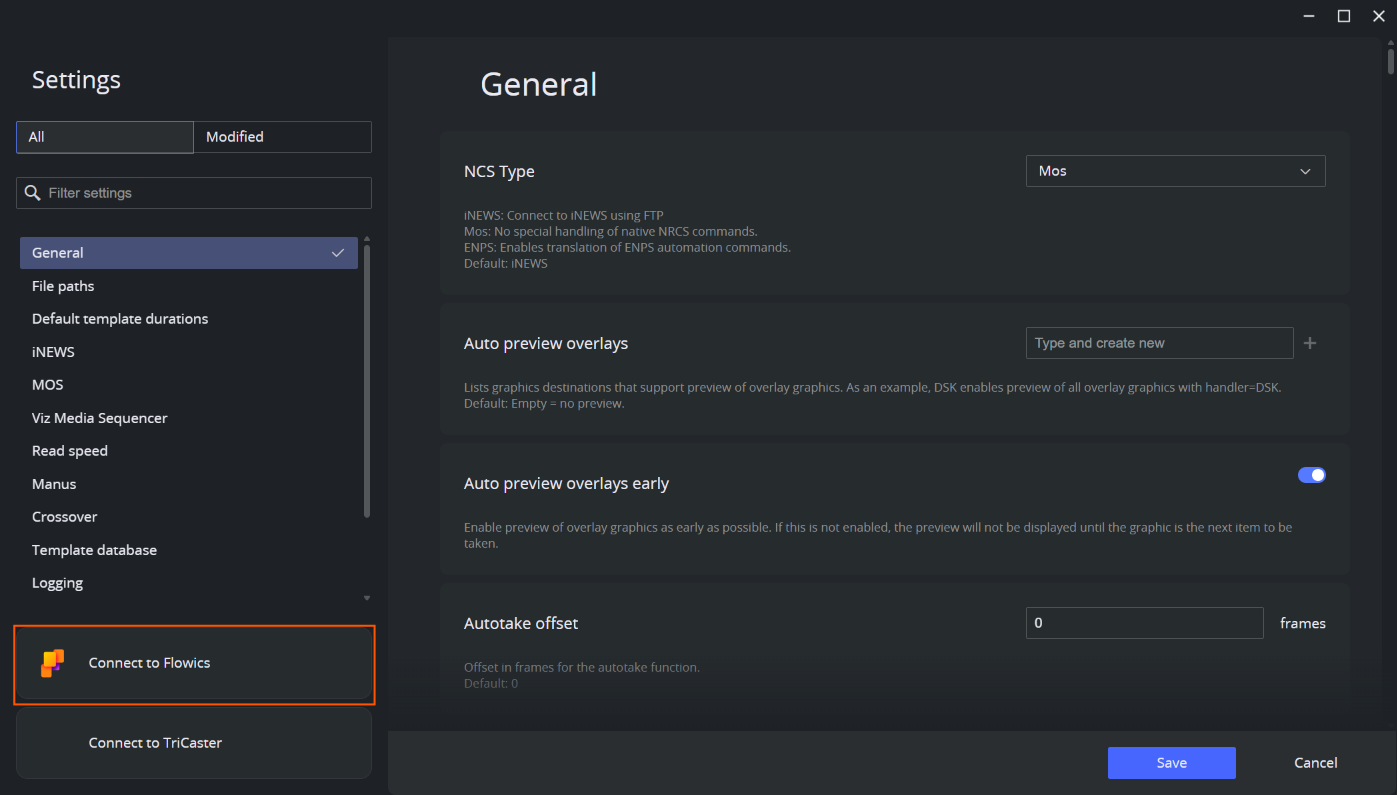
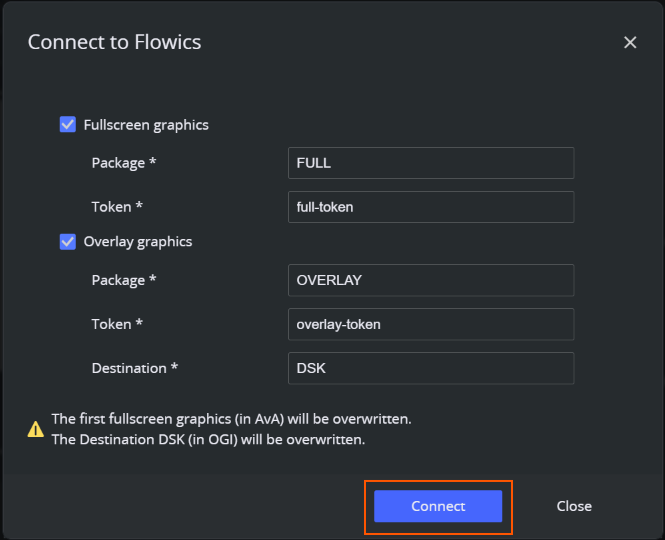
In the Connect to Flowics dialog, select the type of graphics you will use:
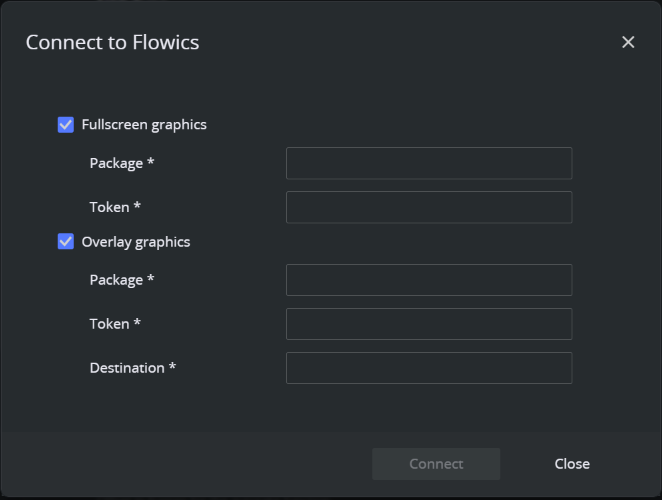
a. Fullscreen graphics
Package: The name of the fullscreen graphics
Token: The token for fullscreen graphics.
The configuration of fullscreen graphics will be applied as the first row in AV Automation > Device Properties > Graphics when connecting.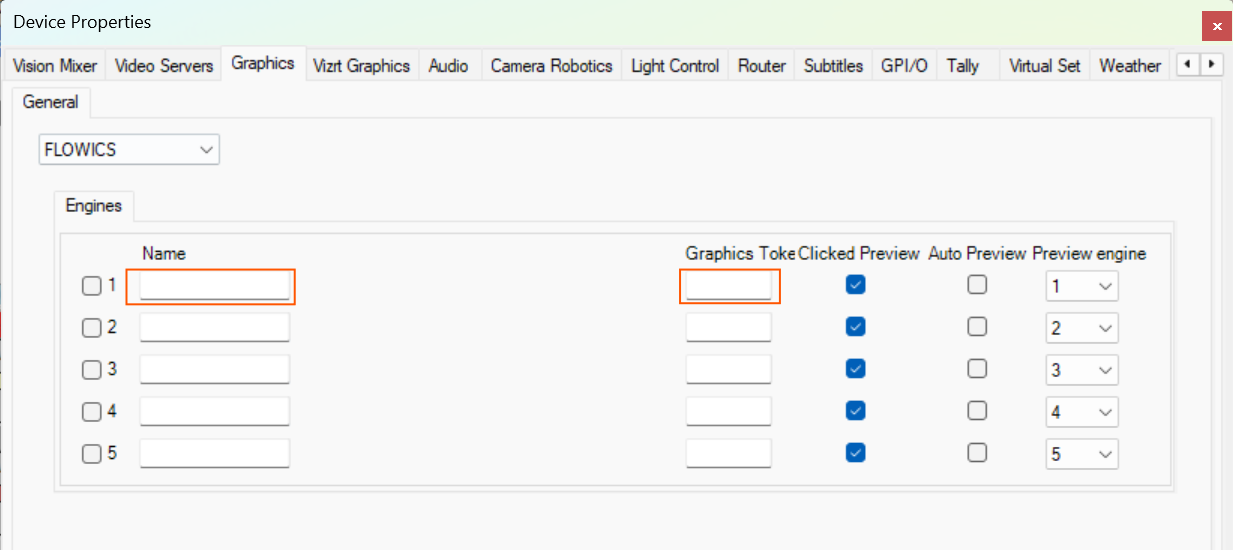
b. Overlay graphics
Package: The name of the overlay graphics
Token: The token of overlay graphic
Destination: The destination of the overlay graphics
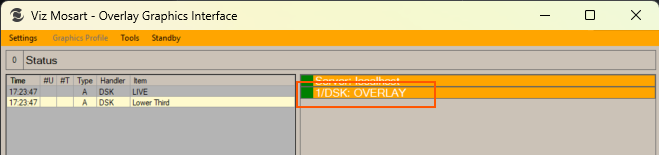
The configuration of overlay graphics will be applied as new Flowics controller with a new Flowics engine in Overlay Graphics Interface > Settings
The destination will be added or overwritten if existing.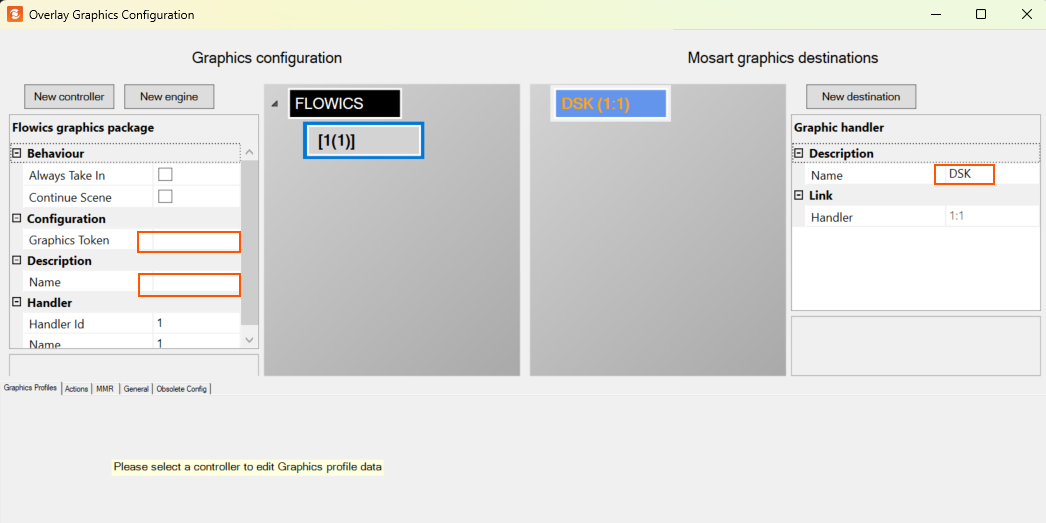
When all required fields are filled, click Connect
Verify the connection
In Av Automation > Device Properties > Graphics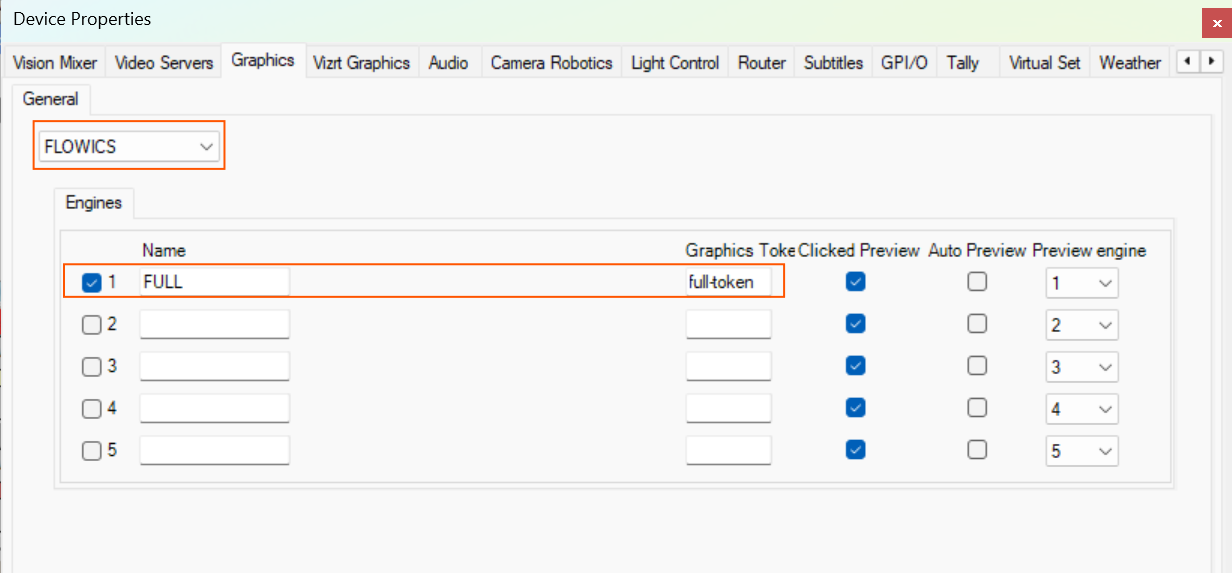
In Overlay Graphics Interface > Settings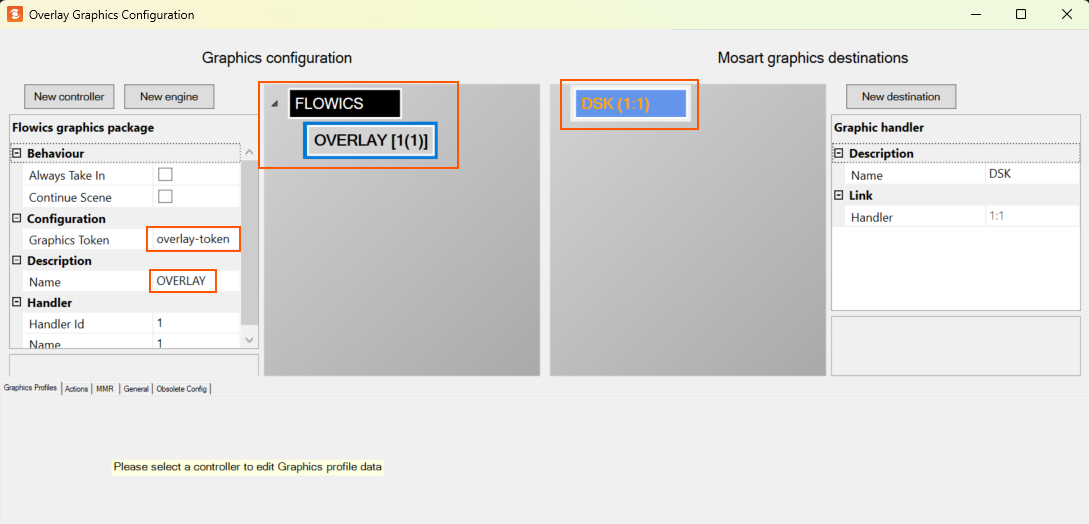
The overlay graphics will be auto-started when connecting.