Working with the iNEWS Timer
The iNEWS Timer provides accurate timing of the production in iNEWS, and is used to synchronize the current Viz Mosart on-air story in the GUI, with its corresponding entry in iNEWS.
Connection
Connected to a local iNEWS client and the remote Mosart server, this application sends a shortcut to the iNEWS client each time an item is stepped through in the Viz Mosart story.
To set up an iNEWS Timer
Info: iNEWS Auto Timer application must be started with Administrator privileges, to be able to send shortcuts to the iNEWS client.
First run: From the Viz Mosart installer directory, run VizMosartINEWSTimer-nnn.msi
Start iNEWS Timer from the desktop shortcut.
After the iNEWS Timer starts, a console Viz Mosart - iNEWS Auto Timer opens.
Type settings in the console, to enable configuration.Make the following configurations:
ApplicationProcessname: Name of your local iNEWS Client process. Default: ANWS.
KeyStrokeHome: iNews client shortcut to reach top of rundown. Default: ^{HOME}.
KeyStrokeTimeMarker: iNEWS client shortcut to be executed at each story. Default: {F12}.
MMServerHost: Mosart Server hostname/IP. Default: none.
MMServerHostB: Mosart Backup host. Default: none.
ShowKeyStrokes: Display sent keystrokes. Default: false.
ShowWindow: Determines how the iNEWS Client window will behave when the KeyStrokeTimeMarker is sent. Default: 5.
0: Simulates an Alt+Tab switch to the iNEWS Client window1: Maximizes the iNEWS Client window, then brings it to front
2: Brings the iNEWS Client to front without changing window state
3: Same as case 1
default Same as case 0
In the iNEWS client, there are some steps needed to configure an iNEWS keyboard shortcut for triggering the Sync Timing feature on the selected story:
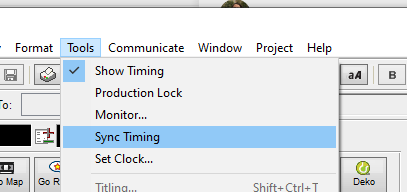
In the iNEWS client, open Tools > Options > Preferences menu, to determine which keyboard is in use, for example DEFAULT:
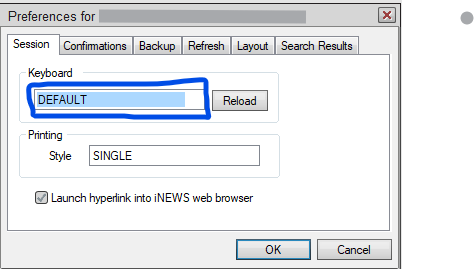
Open the Queue SYSTEM.KEYBOARD.XXXX where XXXX is the keyboard is in use (for example, DEFAULT).
Add the F12 TIME MARK shortcut for triggering Tools > Sync Timing.
(If something other than F12 is configured as KeyStrokeTimeMarker, adapt this to suit that setting).
{alt t}: Selecting Tools top menu tab
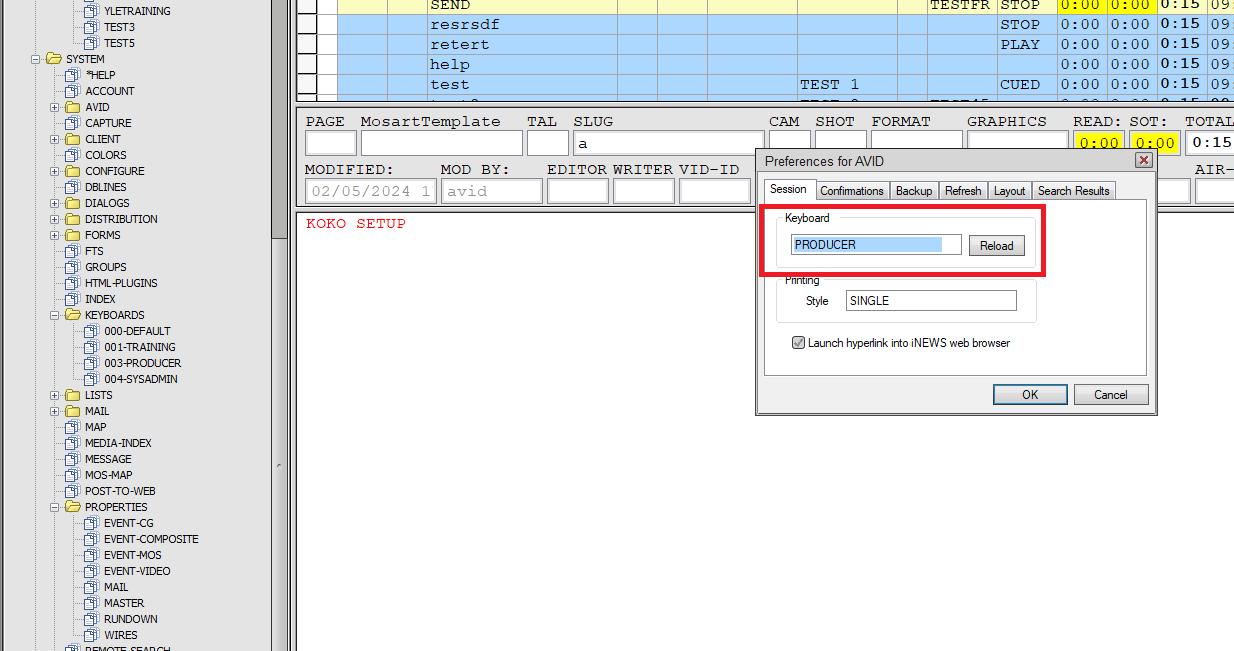
{shift s}: Selecting Sync Timing;F12 Time Mark@{f12}~{alt t}{shift s}After making changes in your keyboard shortcuts, reload them:
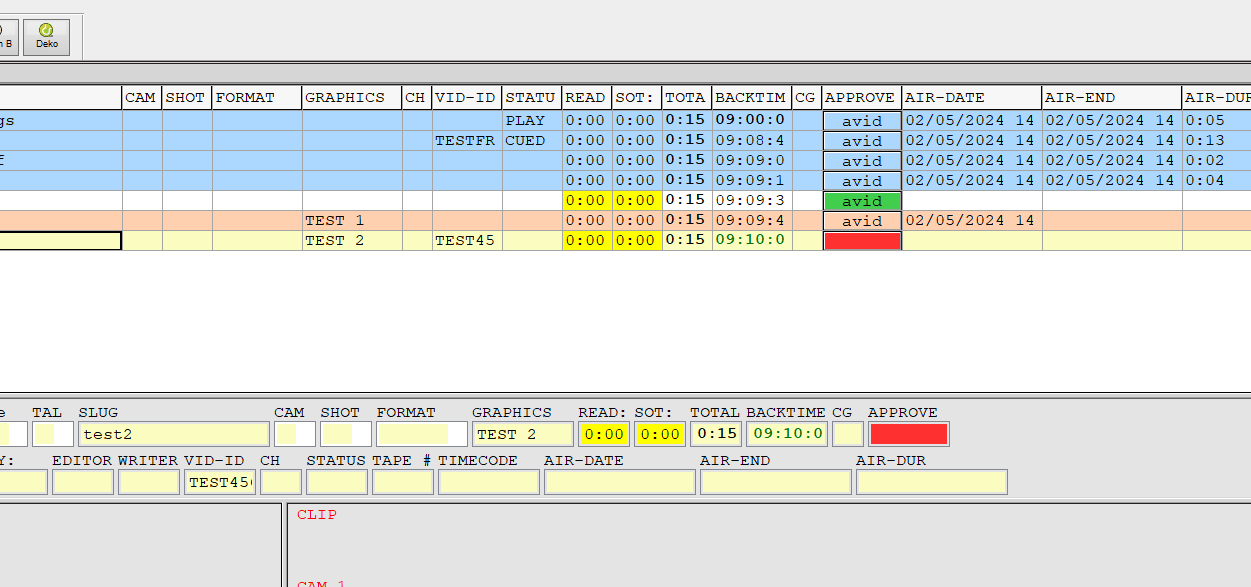
AIR-END and AIR-DUR values are now displayed for each story:
Command Console Commands
From the iNEWS Auto Timer command console you can enter the following commands:
help
SETTINGS: Open the Settings window
SEND [keystroke]: Send a keystroke
SENDHOME: Sends the currenthome message
SHOWWINDOW [int]: Window position
SHOWKEYSTROKES [y]: Shows the sending keystrokes
PRCNAME [ProcessName]: Details on running process.
See also: Avid iNews Web Service for Status Feedback.