On some specific cases (for example, a videowall with multi GPUs on a system with significant compounded delay) outputting the Unreal Engine directly through the DisplayPort could be desireable.
On a multi-GPU configuration, going directly through the display port has a “saving” of four frames (frame 610 through DP vs frame 606 through Viz Engine on the following screenshot).
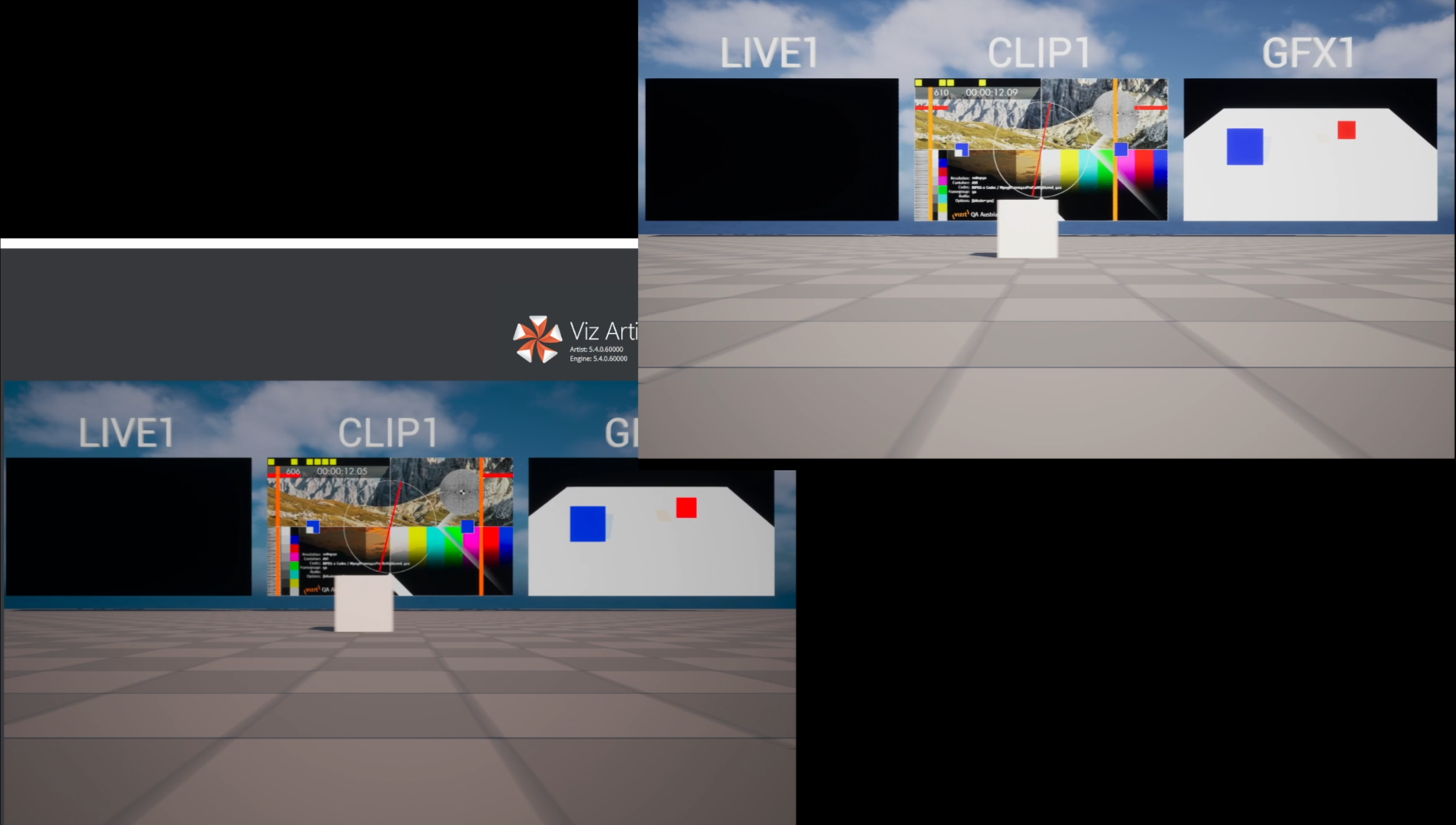
There is a limitation when doing this which is the compositing has to be fully done in the Unreal Engine (items from Viz Engine can be sent to Unreal via GFX Channel).
To run Unreal directly on the DisplayPort output the project needs to be run using -fullscreen and -game flags along with the proper resolution flag. The AutoCapture blueprint should be removed to avoid also sending the texture to Viz (it can be there, but it won’t be useful in this specific case).
To make sure it is an exclusive fullscreen with your desired resolution, edit the GameUserSettings.ini (or create one) with the following:
[/Script/Engine.GameUserSettings] FullscreenMode=0 LastUserConfirmedDesktopResolution=1920x1080 ResolutionSizeX=1920 ResolutionSizeY=1080(FullscreenMode: 0 for exclusive fullscreen, 1 for borderless windowed, 2 for windowed )
These settings assume Exclusive Fullscreen with a resolution of 1920x1080. To change the resolution, set the values required (3840x2160, maybe more for higher resolution displays / videowalls). This should be enough for the project to run on the DisplayPort output.
For videowalls that run through NVIDIA Mosaic, the process is similar with the added set-up of the NVIDIA Mosaic part. An official guide and manual can be found here: https://images.nvidia.com/aem-dam/en-zz/Solutions/design-visualization/quadro-product-literature/NVMosaic-UG.pdf
A more streamlined guide can also be found at https://nvidia.custhelp.com/app/answers/detail/a_id/3568/~/how-to-setup-mosaic-using-nvidia-control-panel.