The Bitfocus Companion module allows you to trigger various Viz Arc actions and shortcuts.
Installation
To use the Companion Module, download the Bitfocus Companion software for Windows. The software does not necessarily need to be installed on the same machine as Viz Arc.
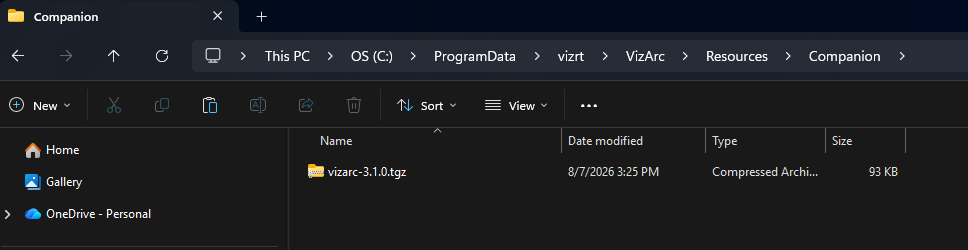
Browse for the Viz Arc module contained in the file vizarc-3.1.0.tgz, which can be found in C:\ProgramData\vizrt\VizArc\Resources\Companion after the Viz Arc installation.
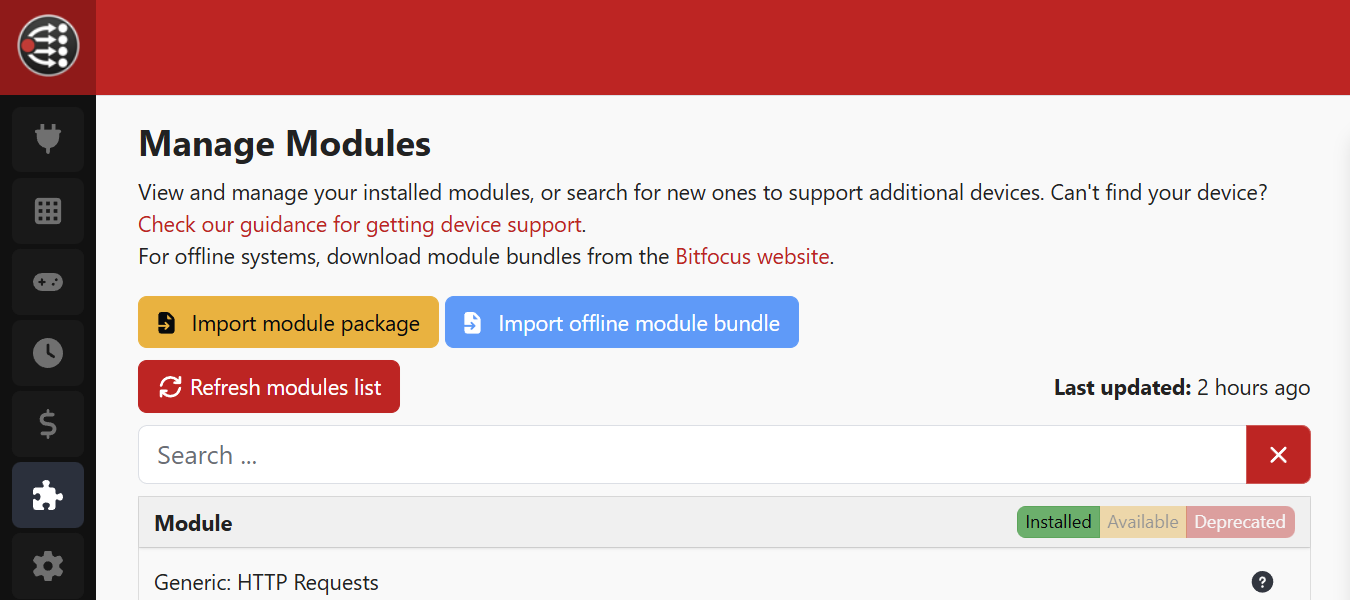
In the Bitfocus GUI, open the Modules tab and click on Import Module Package. Then import the .tgz file.
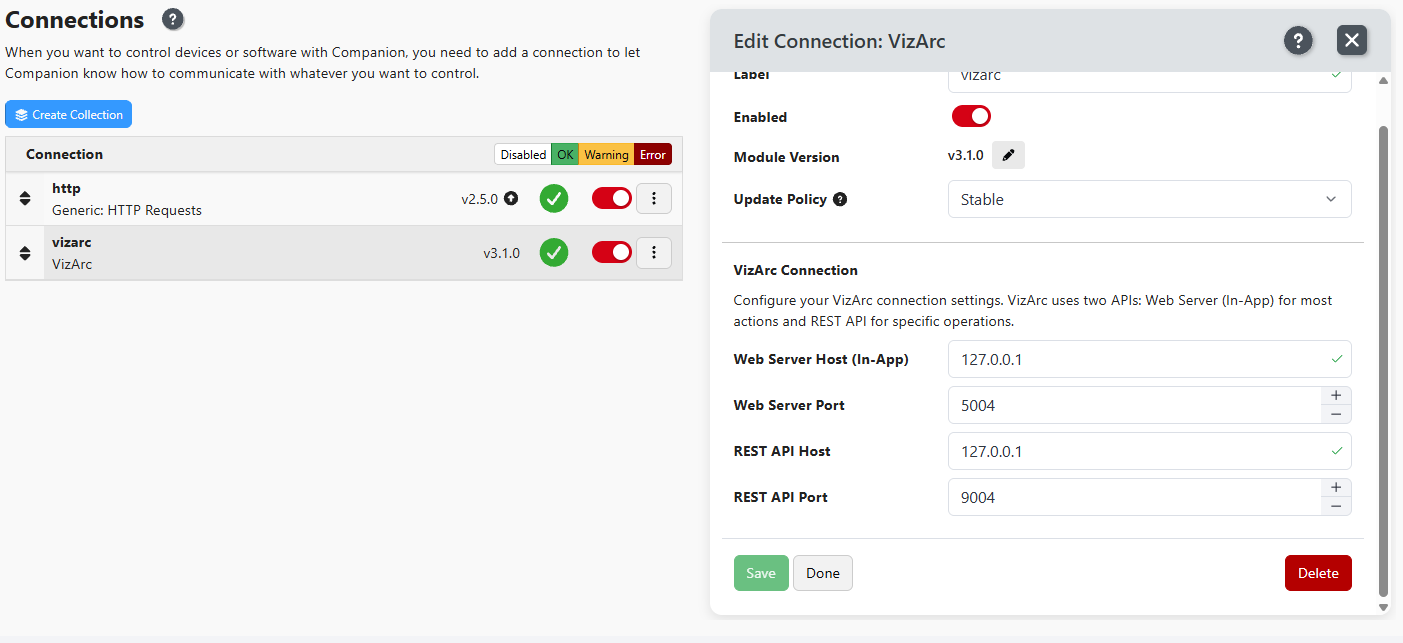
Now open the Connections tab, and search for the Vizrt: VizArc module and add it.
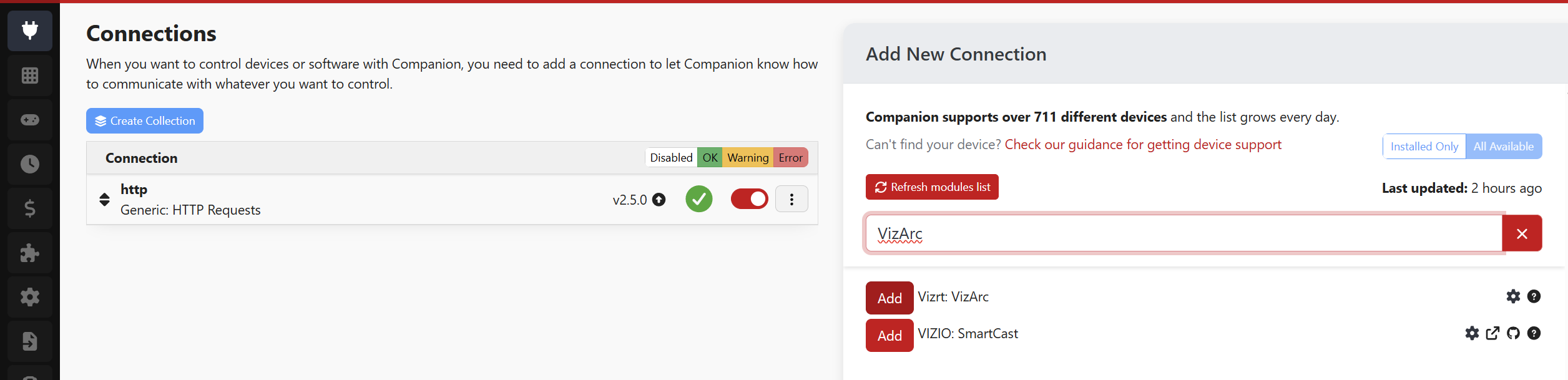
Here you can also configure In App and Rest addresses and ports.
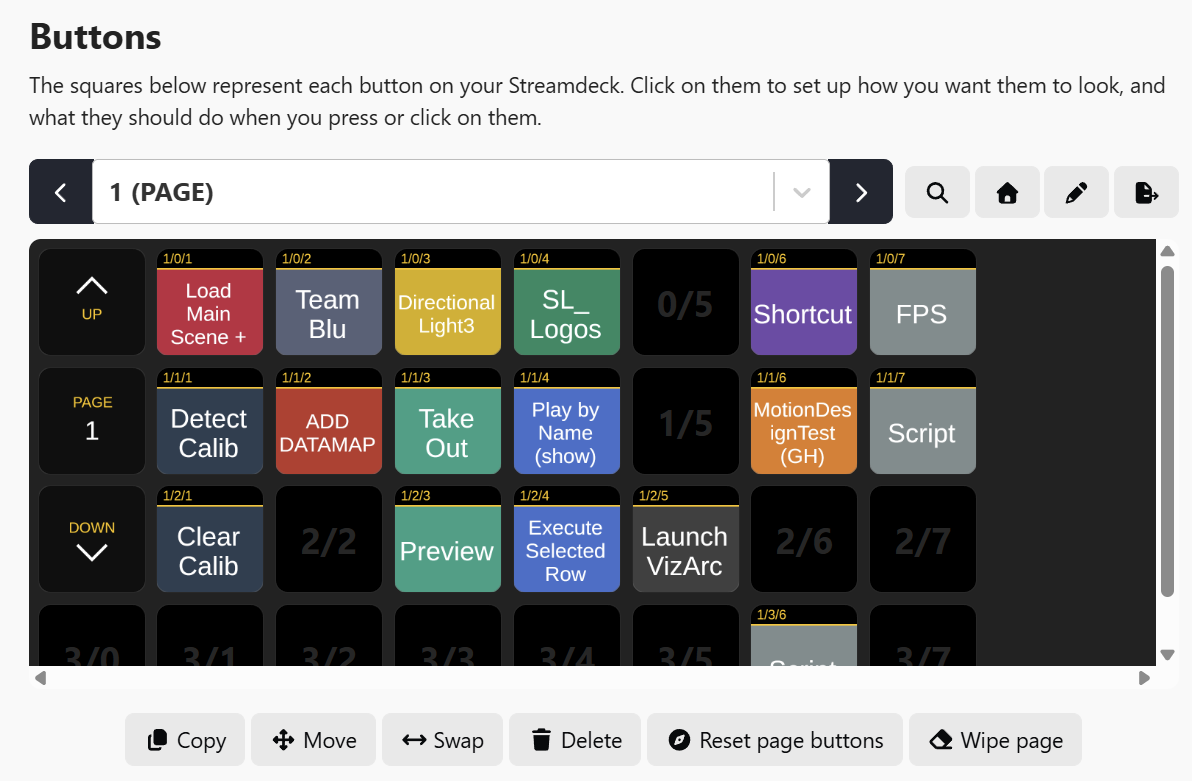
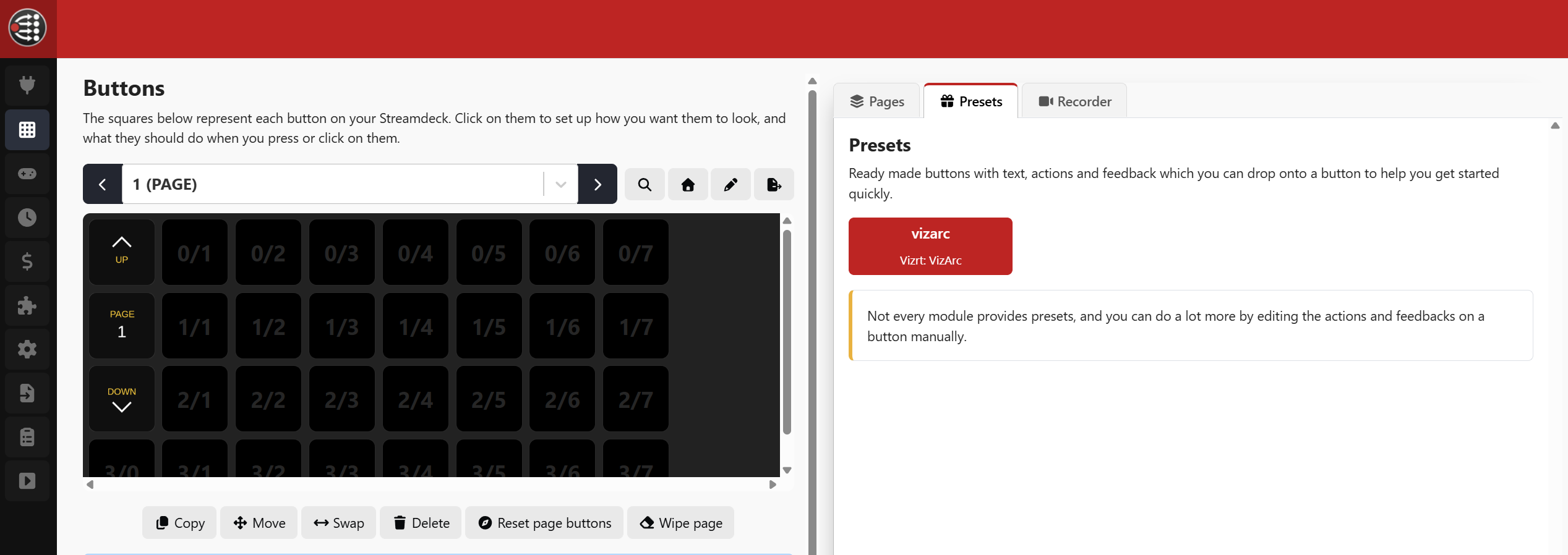
Now you can find in the Buttons tab the VizArc preset.
Connection Configuration
The module communicates with Viz Arc through two APIs, both configurable in the connection settings:
Web Server (In-App): The web server hosted inside the Viz Arc application (default
127.0.0.1:5004). Most actions (playlist control, Object Tracker, Arena, shortcuts, DataMap, script callbacks and Execute) use this API and operate on the project that is currently open in Viz Arc.REST API: The standalone Viz Arc REST Service (default
127.0.0.1:9004). It is used by the Execute (REST) action, which can execute actions from any stored project through an execution profile, independently of what is currently loaded in the Viz Arc client.
In addition to the two HTTP APIs, the module opens a WebSocket connection to the Web Server for real-time updates. Whenever a new project is loaded in Viz Arc, the module is notified and automatically refreshes its tab, action and playlist lists. If the connection is lost, the module automatically reconnects every three seconds.
Presets
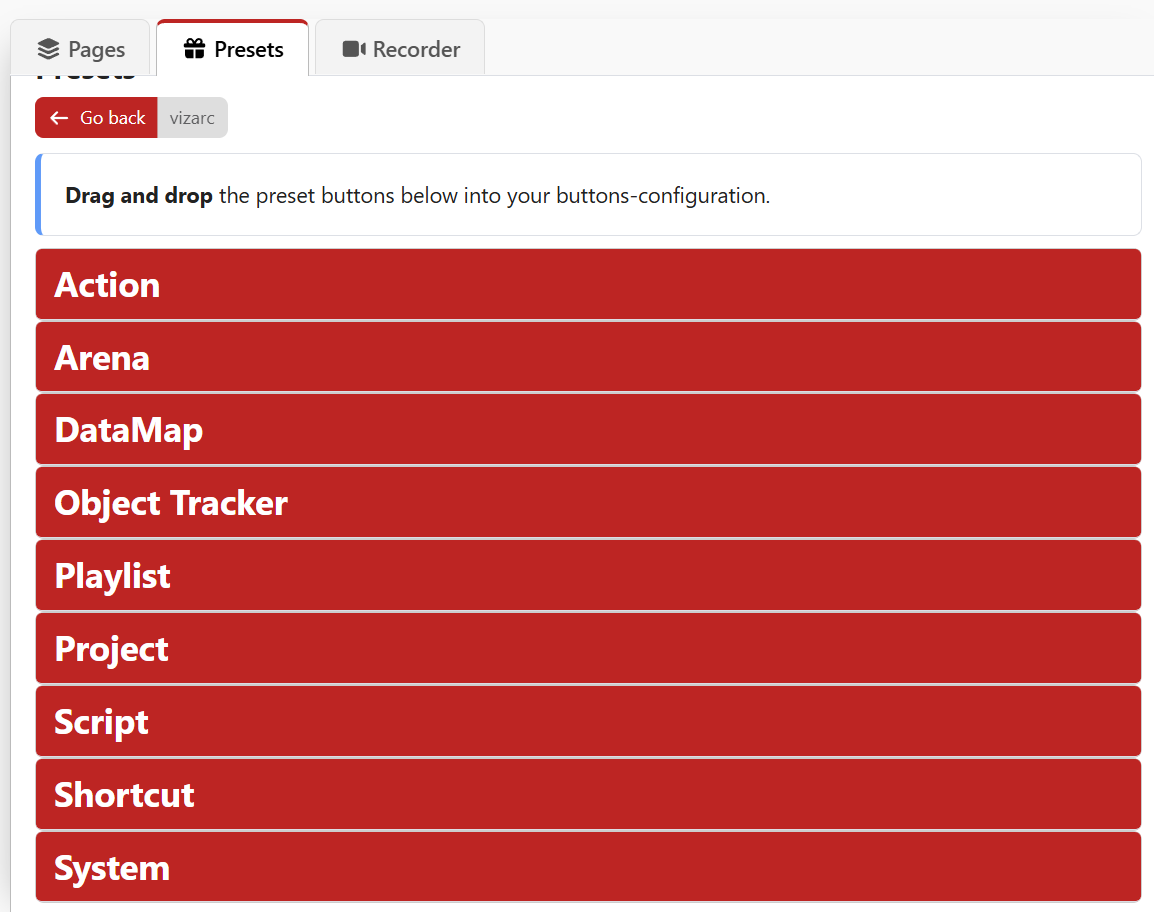
The module ships with ready-to-use presets for every action, organized in the categories Action, Playlist, Script, Shortcut, Arena, Object Tracker, DataMap, System and Project. Each preset comes pre-wired with the matching feedbacks (for example, the Execute presets already include the action color, action text and request error feedbacks), so in most cases you only need to drag a preset onto a button and pick the target action.
Note: The individual actions, their options, feedbacks and variables are described in detail on the Companion page.