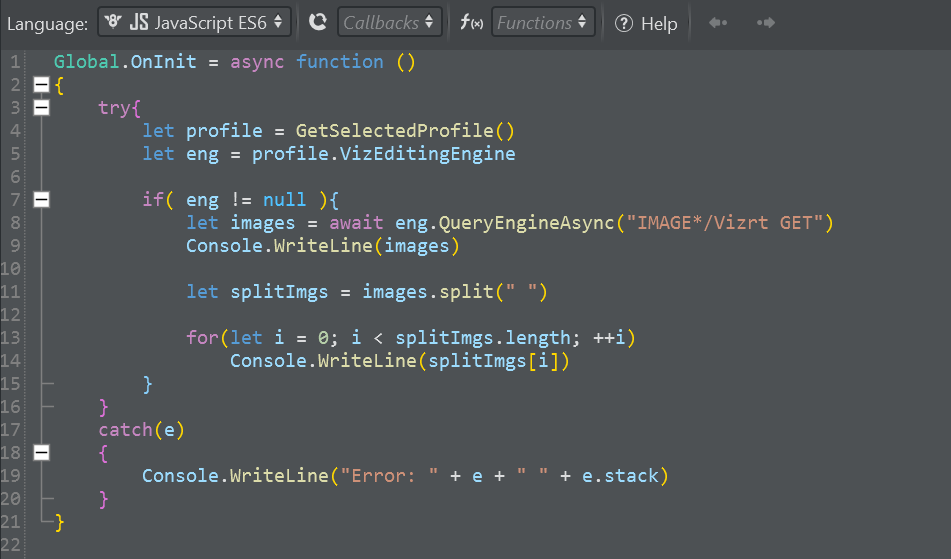
In Script View, you can write your own custom script in JavaScript language through Google's V8 or Microsoft's JScript (ECMAScript3) or in VBScript language, as in the following example:
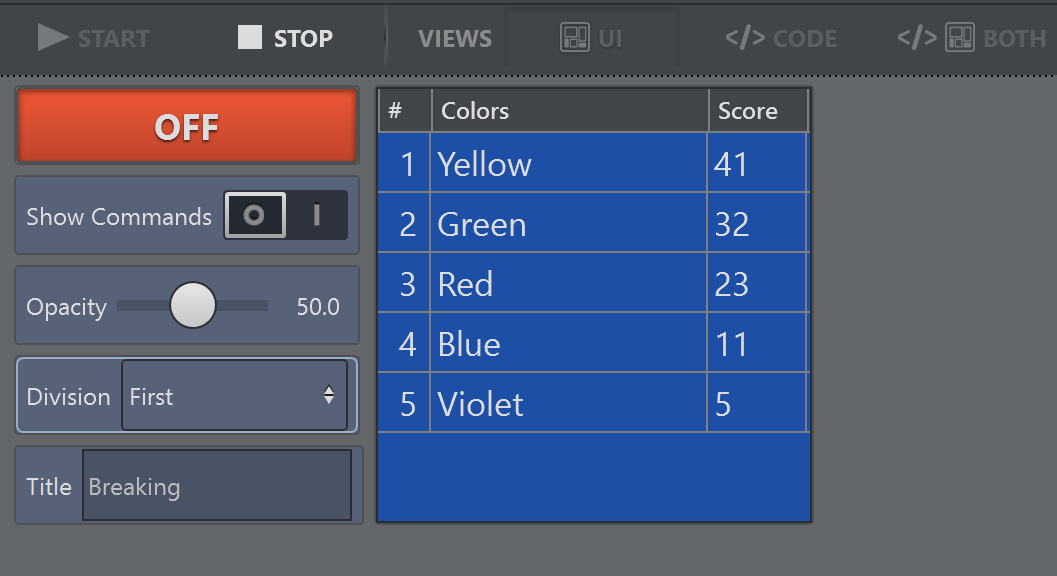
It's possible to create custom forms and components, such as text boxes and buttons.
 | To run the script, select the Start button |
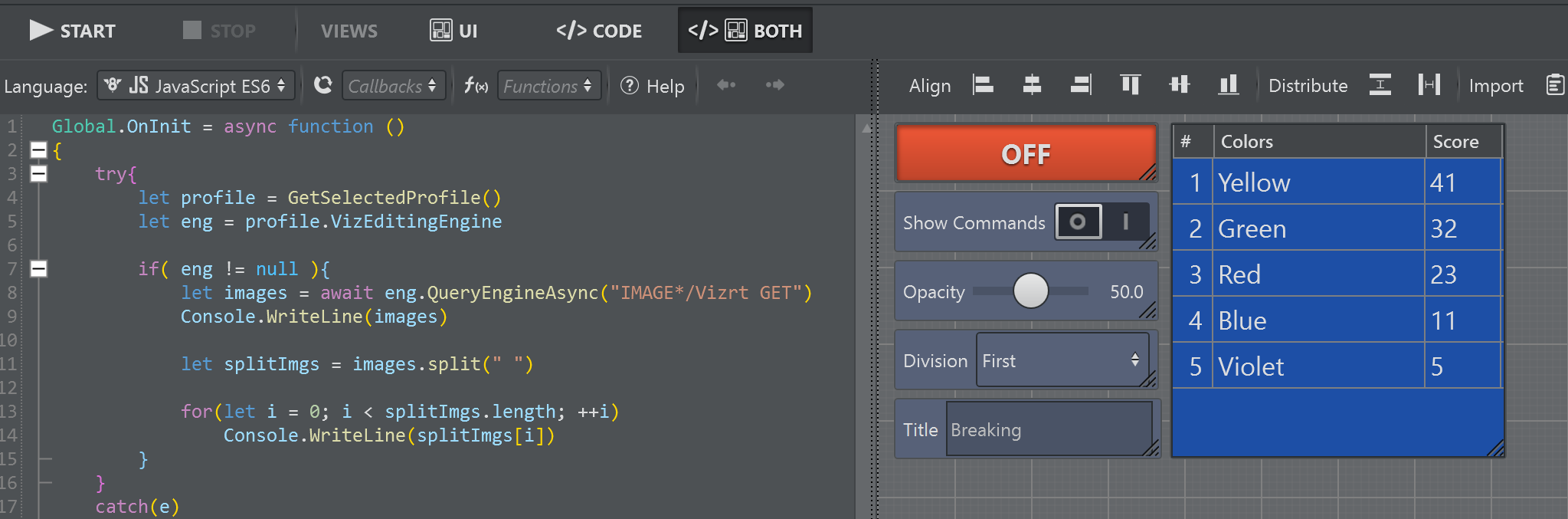
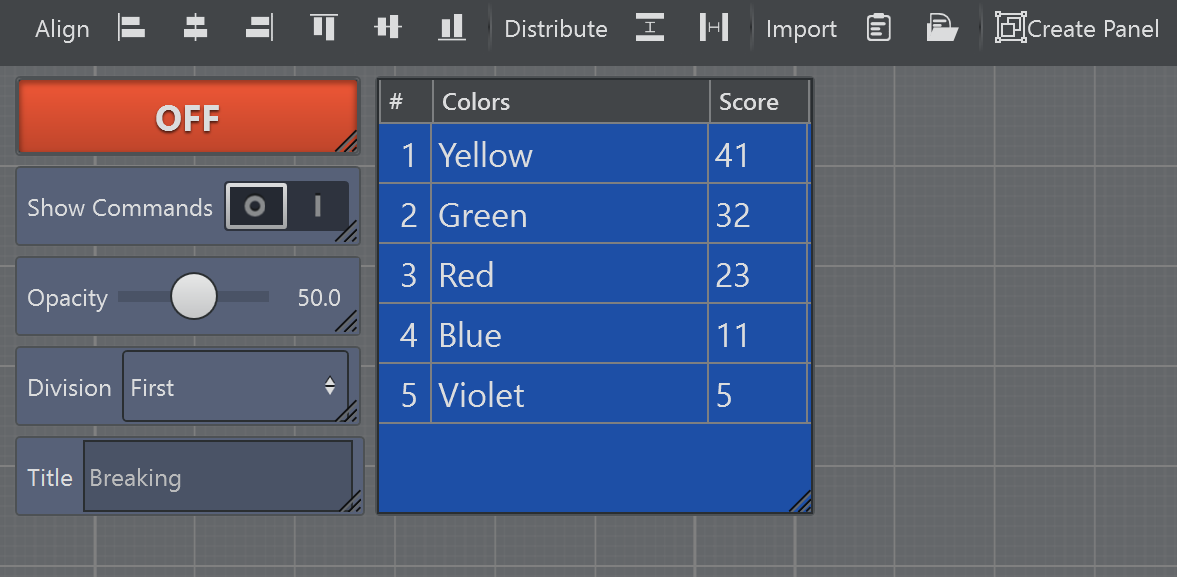 | Form Design can be edited by selecting the UI button To go back to code editing, select the CODE button or select BOTH to have code and UI side by side. |
 | To edit a script, press the Stop button |
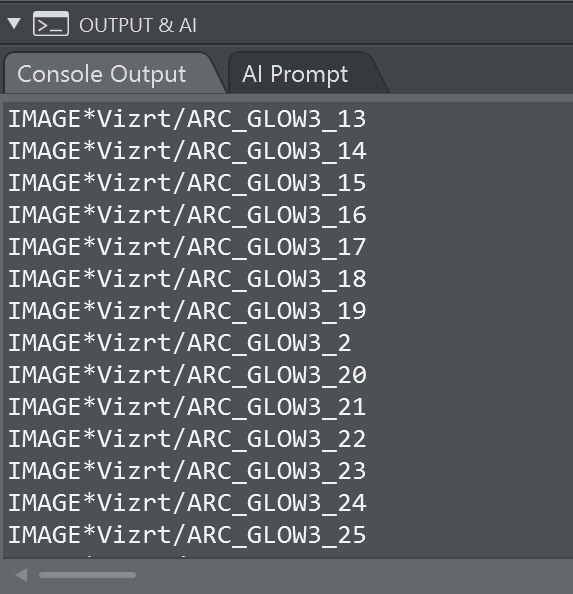 | Console logs and debugs are displayed in the CONSOLE pane. |
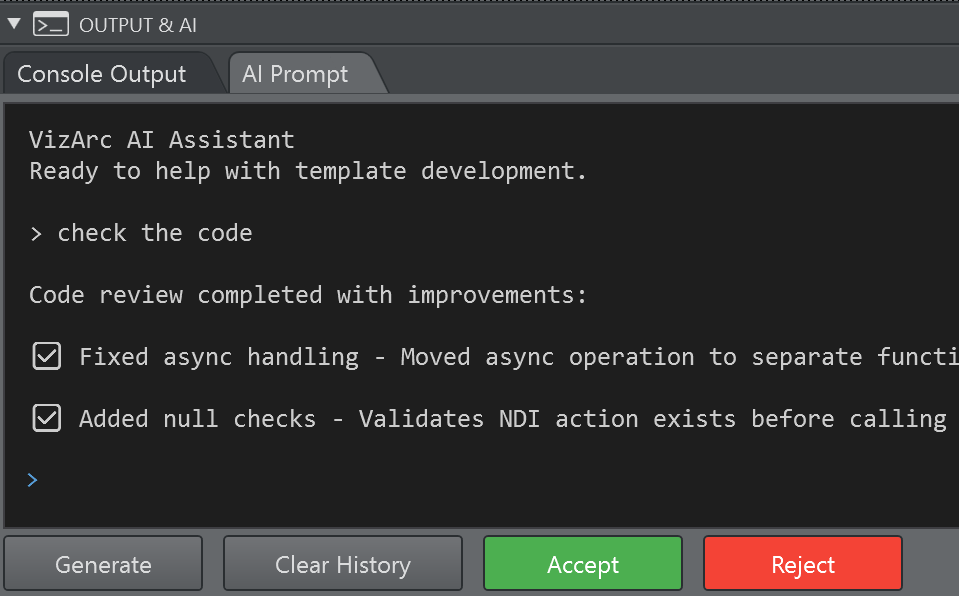 | When configured and licensed the AI Prompt can be used to create or modify the global script. |
| Import code internally from the clipboard or an external text file in the script pane. |
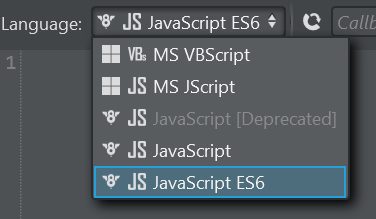
| Use the Language menu to select a scripting language.
It is recommended to use JavaScript ES6 language when possible. |



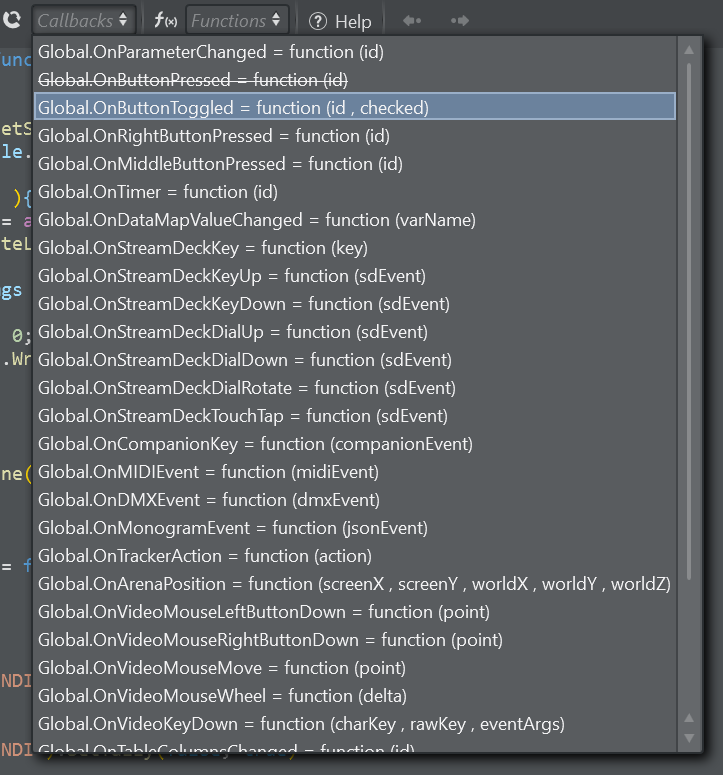
In edit mode, Script Callbacks can be selected from the list and added:
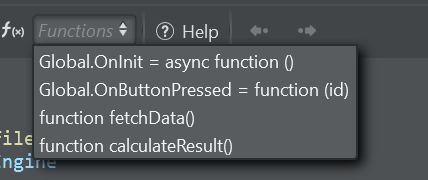
You can locate a custom function by selecting it from the Functions list:
See Also
Scripting Classes