Occasionally, a user might want specific types of graphics to be played out on a designated output channel. For example, lower thirds on one channel and full screens on another. By adding a specific category to a variant of a template, the category’s channel is set as the default output channel when the template’s data elements are added to a playlist.
Categories are abstract terms without any specific meaning. If two Viz Pilot backends contain the same categories, they can be mapped to different channels, matching the channels of the Media Sequencer’s playout profile in the respective location.
For example, two network stations import a template with the category set to FULLSCREEN. The first station maps FULLSCREEN to channel vizengine01, while the second station maps the FULLSCREEN category to channel station-viz2. When adding data elements based on this template to a playlist, the mapped channel is added to the data element and the graphic is played out on the correct viz engine.
Note: The channel name must exist in the Media Sequencer’s active profile, when playing the graphics out.
The same channel can be mapped to multiple categories, but one category can only be mapped to a single channel.
To open the Categories and Channels dialog, click the  button on the toolbar and select Categories & Channels.
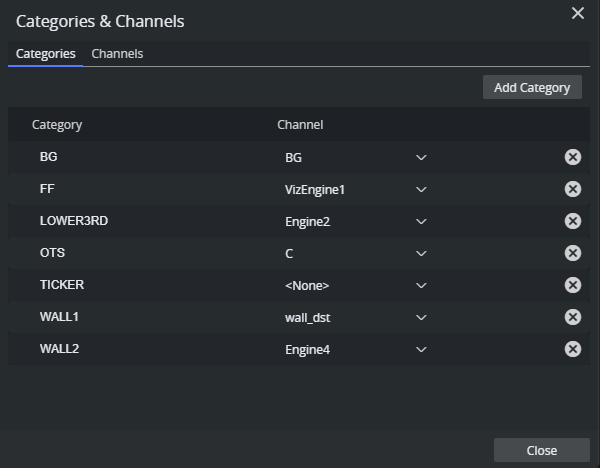
In the Categories section, the list on the left displays all categories in the Viz Pilot database, while the Channel list on the right shows the channel each category is mapped to. Select the desired channel for each category with the drop-down.
To apply a category to a variant of a template, open the template and go to Template Properties.